Sources: how watching becomes mining
AutoMiner mines what you watch. You watch a video, an episode or a podcast on a platform you already use. AutoMiner records the watch, fetches the media and its subtitles, and turns lines you almost understand into cards. This page explains the model every platform shares: what a source is, how a watch becomes cards, and how to look after your sources afterwards.
Each platform has its own page for setup:
Words used on this page
Section titled “Words used on this page”| Term | Meaning |
|---|---|
| Source | One video, episode, podcast episode or music track you watched or listened to. |
| Platform | Where sources come from: YouTube, Stremio, Spotify, Jellyfin. You install only the ones you use. |
| Tracker | The part of a platform that reads your watch history from the platform’s own service, inside AutoMiner (Stremio and Spotify have one). |
| Watch | One viewing or listening session of a source, reported by the Chrome extension, the Android YouTube patch or a tracker. |
| Fetch | Downloading a source’s subtitles, and its video or audio when needed. |
| Candidate | A subtitle line that could become a card, with its target word, clip and score. |
| Gold | A candidate AutoMiner picked to send to Anki as a word’s card. |
| Stale | A source built from settings or data that have changed since. The Fix button rebuilds it. |
What a source is
Section titled “What a source is”A source is created the first time a watch of it is reported. It holds:
- its title, its length and its show or channel,
- its platform and its ID there,
- its language,
- your watch history: every session, on every device,
- its subtitles (the timed lines),
- its candidates, clips and screenshots,
- the downloaded video or audio, for as long as AutoMiner keeps it.
AutoMiner knows a source by its platform ID, such as youtube:<video id>. One
source can carry several IDs, called aliases. A Spotify podcast episode is known
under both forms of its episode ID, and an anime episode can also be known by its
Kitsu or AniList episode. A watch that names any of these IDs lands on the same
source, whichever device or app reported it.
A source with a different ID but the same work is a separate source. AutoMiner does not mine it twice. If a source with the same title (or the same IMDb movie, or the same IMDb season and episode) already has candidates, a new watch of the copy fetches nothing. If you press the copy on Today, it says “Same title already mined” and links to the source that holds the candidates.
You see sources in two places:
- Today lists every source you watched that day, mined or not, with its devices, watch time and fetch state.
- Sources lists the sources that have candidates. A source that was never mined, is fetch only, failed, or is tracked only appears on Today, on the days you watched it, but not on Sources.
Platforms
Section titled “Platforms”| Platform | How watches reach AutoMiner | How the media is fetched | Reports where you watched |
|---|---|---|---|
| YouTube | The Chrome extension on youtube.com, and the YouTube patch for Android (phone-youtube.md) | yt-dlp, which AutoMiner downloads when you install YouTube. Subtitles come from YouTube itself. | Yes |
| Stremio | The Stremio tracker, inside AutoMiner | A search (Prowlarr or a Stremio addon) and Deluge behind a VPN, which you run yourself. Subtitles come from the file, Jimaku and other releases. | No: only that you finished |
| Spotify | The Chrome extension on open.spotify.com, and the Spotify tracker, which reads your playback history (phone included) | Podcast episodes: the audio from the show’s RSS feed, then transcription. Music tracks are tracked only. | Yes |
| Jellyfin | Nothing that ships with AutoMiner reports Jellyfin watches | Nothing: Jellyfin cannot be fetched | Not applicable |
Details, requirements and troubleshooting are on each platform’s page, linked at the top.
Installing and uninstalling a platform
Section titled “Installing and uninstalling a platform”A fresh install has no platform installed. Until you install one, Today’s empty list shows a Settings › Sources → link.
- Open Settings › Sources.
- In the Platforms card, press Add. The Add a platform popup lists every built-in platform.
- Press + beside a platform to install it. Its section appears under the Platforms card. Installing YouTube downloads the programs it needs, so it can take a moment. If the download fails, the reason shows in the card, under Add.
- To remove a platform, open the popup again and press the trash button beside it. A confirmation explains: “Stops recording watches and fetching, and deletes the downloaded files. Settings, sources, clips and cards stay.”
While a platform is not installed:
- watches from it are dropped, not recorded,
- nothing of it is fetched (a queued fetch is skipped with “Platform is not installed”),
- its tracker does not run.
Uninstalling stops the platform’s queued and running fetches and deletes the videos it downloaded, the way a source’s Delete video does (each source keeps its audio track and frames, so its clips still work). Its settings, sources, clips and cards stay, so installing it again brings it back as it was.
Add from a zip is shown in the popup but disabled. Adding community platforms from a zip (packs) is planned, not built: see Packs, issue #1507 and ADR 0001.
If your AutoMiner is older than platform installs, every platform that already had sources or settings starts out installed.
From a watch to cards
Section titled “From a watch to cards”-
A watch is reported. The extension, the phone patch or a tracker sends the start of the watch, your position while you watch, pauses, seeks and the end.
-
The watch ends. AutoMiner decides whether to fetch the source. It does not when:
- the platform’s mining mode is Don’t mine,
- the same work is already mined under another source,
- the platform cannot fetch (Jellyfin, or a Spotify music track).
If the source was fetched before and its platform is set to Only what I watched, AutoMiner mines the newly watched part instead. A YouTube source whose last fetch failed or was skipped is fetched again.
-
The source is fetched. The fetch step below finds subtitles and downloads the media.
-
The source is mined. Lines with words you do not know become candidates, and the best candidate per word becomes gold. Each gets a definition, a clip and a screenshot, and a translation when automatic translation is on. When the subtitle check is on (Settings › Subtitles › Check mode, off by default; never for podcasts), AutoMiner checks that the subtitle timing matches the audio before clips are cut: see The judge and Subtitle timing.
-
Gold cards are sent to Anki, from the Queue or by auto-send.
A watch that never ends (the browser was closed mid-video, say) leaves the source unfetched. Open Today and press the source’s row to fetch and mine it by hand.
Mining mode per platform
Section titled “Mining mode per platform”Each installed platform’s section in Settings › Sources has a select in its heading. It decides what is mined from that platform’s watches.
| Option | What happens | Setting rows |
|---|---|---|
| All of it (default) | The whole item’s subtitles become candidates, wherever you watched. | mine.enabled:<platform> = 1, and mine.watched_only:<platform> = 0 where Only what I watched is offered |
| Only what I watched | Only the lines in the parts you watched become candidates. Watching more later mines that part too, when the watch ends. Offered only for YouTube and Spotify, the platforms that report where you watched. | mine.enabled:<platform> = 1, mine.watched_only:<platform> = 1 |
| Don’t mine | Watches that arrive from now on fetch and mine nothing. The watch history is still recorded, and mining you press by hand still runs. | mine.enabled:<platform> = 0 |
Details of Only what I watched:
- A span shorter than 5 seconds (where a seek landed) does not count as watched.
- An episode a device reported only as finished is mined whole.
- Stremio reports only that you finished, so it is always mined whole.
- A Spotify podcast is transcribed only up to where you listened plus 2 minutes; listening on adds the rest.
Saving says “Saved · existing sources stay as they are”. Nothing already mined is rebuilt by the change:
- Switched to Only what I watched: the band under each source on the Sources list shows what you watched (blue) and where the gold, approved and sent cards are. To drop cards from parts you did not watch, rebuild the source with Recalculate.
- Switched back to All of it: sources mined to what you watched turn Stale. Press the source’s ↻ button, or Fix all, to mine the rest.
The fetch step
Section titled “The fetch step”YouTube and Stremio go through one shared fetch step. It does the following, in order. Each platform supplies its own parts (how to find its subtitles, how to download its media) and the step does the rest the same way for both.
- Find the source on its platform. A source that lacks its platform ID fails here.
- Decide the language. A language you set by hand always wins. Otherwise AutoMiner uses the language the platform names (YouTube’s audio language, the file’s audio tags), then the script of the title. When you study two or more languages and nothing names one, AutoMiner downloads the media and sends a short sample from the middle of the audio to a cloud transcription service (ElevenLabs or OpenAI, whichever has a key) to hear which language it is. Without either key it cannot listen, and falls back to your first studied language.
- Learn the details. The title, the length, and the show or channel the source is shelved under on the Sources page.
- Find subtitles, in this order: the platform’s own (YouTube’s captions), then subtitles embedded in the downloaded file (Stremio), then subtitles from elsewhere (for Stremio: Jimaku, for the languages Jimaku has). Subtitles from other releases can be gathered later, during the subtitle check.
- Apply the platform’s filters. For example, YouTube’s Mine only videos with manual subtitles stops a video that has only auto captions.
- Download the video or audio, when the language is one AutoMiner mines and there are subtitles or a transcription service to make them.
- Store the subtitles and hand over to mining. With no subtitles at all, the source goes to transcription first. When the only subtitles are YouTube’s auto captions and a transcription service with a key is set, AutoMiner transcribes the audio instead, within your spending limits.
Spotify podcast episodes take their own shorter path, since they have no subtitles: AutoMiner finds the episode in the show’s RSS feed, decides the language (a language you set, then the feed’s language tag, then the show and episode titles, then a short listen when you study two or more languages), downloads the audio and sends it to transcription. See Adding Spotify and podcasts.
What a fetch can show
Section titled “What a fetch can show”While a fetch, transcription or mining job is queued, running or waiting, the Workers panel in the side rail follows it (where the rail cannot show it, a card in the bottom-right corner does). Once it ends, a source that has no candidates yet keeps the outcome on Today: a mark beside its watch time, which shows the state and the message when you hover or press it.
| State | Meaning |
|---|---|
| Queued | Waiting for the worker. |
| Running | Being fetched, transcribed or mined now. |
| Done | Finished. The source has candidates, or nothing was mineable. |
| Failed | An error stopped it. The message says what. Press the row to try again. |
| Stopped | Someone cancelled it. |
| Skipped | AutoMiner chose not to go on, and the message says why. |
| Waiting for budget | A paid step would pass a spending limit. It resumes by itself when the day or month turns or you raise the limit (Settings › Budget). |
Common Skipped messages:
| Message | Why | What to do |
|---|---|---|
| Not in a language you study (language) | The platform names a language you do not study, and its filter is on (YouTube’s Mine only videos in a studied language). | Nothing, if it is right. If the source really is in a language you study, press the row and pick the language. |
| No manual language subtitles (auto captions only) | YouTube’s Mine only videos with manual subtitles is on. | Turn the filter off, or let it be. |
| Not a show in a studied language, so not fetched (language) | A podcast whose feed or titles name a language you do not study. Nothing is downloaded. | Nothing, if it is right. Otherwise press the row: a fetch you press is not stopped by this. |
| Language is not mined (fetch only) | The source’s language is one AutoMiner tracks but cannot mine. | Nothing. See Languages. |
| Couldn’t tell its language (pick one you study) | You study several languages and AutoMiner could not tell this one. | Press the row and pick the language. |
| Platform is not installed | The platform was uninstalled after the fetch was queued. | Install the platform again if you want it. |
When a setting would fix the problem (a missing key, for example), the message ends with a Fix → link that opens that setting.
Fetching or mining by hand
Section titled “Fetching or mining by hand”On Today, a row of a source with no candidates is a button. Its tooltip says “Fetch from YouTube and mine”, “Fetch from Stremio and mine” or “Fetch from Podcast RSS and mine”. Press it (or focus it and press Enter) to fetch and mine the source now. The row then says “Accepted”, “Already queued”, “Already mined” or “Same title already mined”, and follows the job. When the job fails, is skipped or is stopped, the note ends with “· retry” and you can press it again.
Pressing the row first asks “Which language should it be mined in?” when you study two or more languages, when the source is fetch only, or when its last fetch found it in a language you do not study. Pick a language only if the audio really is in it: see Languages.
A source with candidates opens its page from Today instead (“See candidates”).
A row marked Tracked only is a source that cannot be mined: a Jellyfin watch, or a Spotify music track. It cannot be pressed; its tooltip says “This source cannot be mined”.
Watch time
Section titled “Watch time”Your watch time comes from your position reports, not from how long a tab was open.
- AutoMiner builds intervals from the positions a watch reports. A pause, a seek or the end of the watch closes an interval. A position that jumps more than 90 seconds ahead of the last one reported also starts a new one.
- A source’s watch time for a day is the union of its intervals that day, across all sessions and all devices. A minute you rewatch, or watch on your phone and again on your computer, counts once.
- A watch counts on the day it started, in your time zone (Settings › General › Time zone; blank uses the browser’s).
- A watch reported without positions (Stremio reports only that you finished) shows Finished on Today instead of a time.
- Deleting a source keeps its watch time. Today still lists the watch under its last title. Watch time whose source cannot be named any more shows as Deleted source.
Under each row on the Sources list, a band shows the source’s length with the parts you watched in blue and a gold tick for each card that is gold, approved or sent. Hover it for “Watched x of length · n cards”. A source’s page shows a larger band with a tick for every card; press a tick to open that card.
Devices
Section titled “Devices”Every watch carries a device name.
- The Chrome extension’s popup sets the name for that browser.
- The YouTube patch for Android sets the name for that phone.
- Trackers (Stremio, Spotify’s history) show as API.
Today shows each source’s devices as small tags. To color them, open
Settings › General › Device colors. Each device you have used is listed with
its number of sessions. Pick Grey, Blue, Green, Orange or
Gold for it, then save. New devices are grey. The colors are stored in the
ui.device_colors setting and are the same on every browser.
Languages
Section titled “Languages”Each source has one language. Which languages you study is set in Settings › Languages under Studied languages. Languages AutoMiner can track but not mine are listed there under Fetch-only languages. More on choosing languages: Languages. The language model in depth: Language profiles.
What a source’s language decides:
- A studied language AutoMiner can mine (Japanese, Korean, Chinese): the source is mined.
- A fetch-only language: the source is tracked and its subtitles are fetched, but it is never mined. No transcription is paid for it and no podcast episode is downloaded. Today says “Language is not mined (fetch only)”, and the language select lists the language with “(fetch only)”.
- A language you no longer study: its sources keep their cards, but those cards are not sent. On the Sources page the language tag is struck through (“Not studied — this source’s cards aren’t sent”).
Correcting a source’s language
Section titled “Correcting a source’s language”If AutoMiner detected the wrong language for a source, open the source’s page and pick the right language in the language select in its header (the subtitle screen has the same select, This source’s language). AutoMiner asks first: “Change the language to language?”, with how many cards move. When you confirm:
- the untouched cards of the old language go to the trash (cards you made, edited, decided or sent stay); restore them in Audit › Clips while they are still in the trash,
- cards an earlier language change put in the trash come back when you switch back,
- the source is fetched again in the new language and mined again, unless it can bring back lines it kept from before.
Every later fetch keeps the language you chose. If the change does not finish, the source page says “The language change didn’t finish” with a Retry button.
A source you don’t want mined: delete it
Section titled “A source you don’t want mined: delete it”Use the language select only to name the language the audio is really in. If a source is in a language you do not want to mine (an English video in your Japanese feed, say), delete it instead of relabelling it as a language you study.
A language change fetches the source again as if you had pressed it yourself. A pressed fetch skips YouTube’s Mine only videos in a studied language and Mine only videos with manual subtitles filters. If the video has only auto captions, or no subtitles, AutoMiner then transcribes its audio as your chosen language, which costs money when the transcription service is a cloud one, and gives lines that do not match the audio. The same happens if you pick a studied language for such a source when Today asks “Which language should it be mined in?”.
The Sources page
Section titled “The Sources page”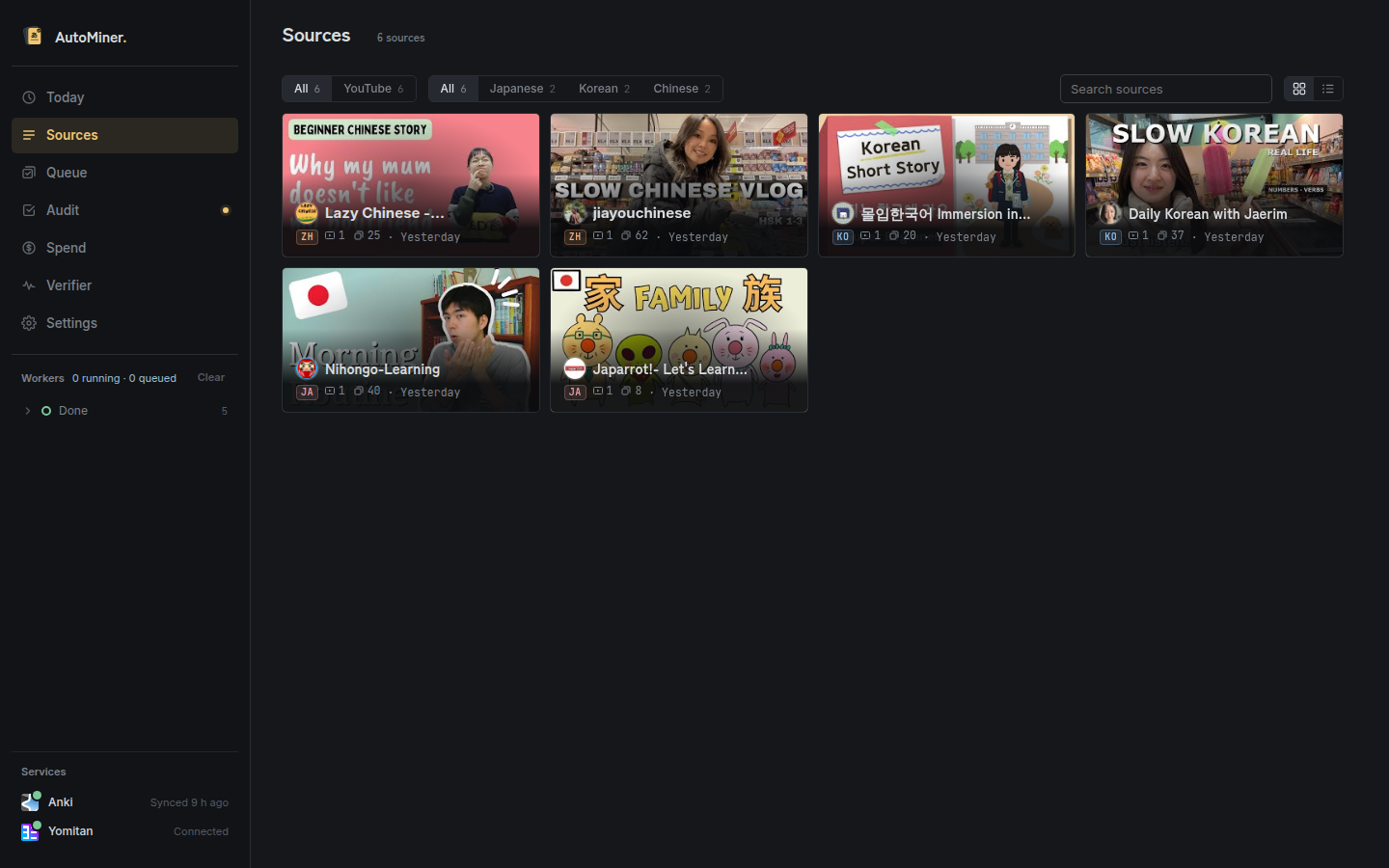
The Sources page lists every source that has candidates, newest first.
The bar at the top:
| Control | What it does |
|---|---|
| Kind chips (All, YouTube, Stremio…) | Show one platform’s shows and channels. Only platforms you have sources from appear. |
| Language chips | Show one studied language. They appear only when you study two or more languages. |
| Search sources | Find a show, channel or source by title. / puts the cursor here. Clear search empties it. |
| Cards / List (newest first) | Cards shows one card per show or channel. List shows every source as a row, by day. Your choice is kept in this browser. |
| ↻ with a number (Fix all) | Fixes every stale source, one after another. See Stale sources. |
The text beside the page title says how many sources there are, or “n need updating”, “Fixing done/total”, “n on hold” or “All up to date”.
A show or channel card shows the artwork, the language tags, the number of episodes or videos, the number of candidates and the last day you watched. YouTube groups by channel; Stremio and Spotify group by series. Press a card to open the show. Inside it, ← All sources goes back, ↻ fixes the show’s stale episodes, and “Show n in other languages” reveals episodes hidden by the language filter.
A source row shows its thumbnail, language tag and title, then:
- the platform’s mark,
- a camera icon: Local video kept, or crossed out for No local video (audio and frames kept) or No media,
- its state in words (see below),
- the watched band,
- three bars: Gold (gold words of all words), Score (clips scored of all clips) and Cands (candidates with a clip, against your largest source),
- ↻, the source’s Fix button,
- a trash button, Delete source.
Press a row to open the source’s page.
A source’s page
Section titled “A source’s page”The header shows the source’s title and language. Under it:
- ← back to the list.
- The state of the source, as a button. Press it to open the source’s dependency graph (see Stale sources).
- The platform’s mark. For YouTube and Spotify it links to the source on the platform (“Open in platform”).
- The language select.
- “Watched part only (n lines)” when the source was mined with Only what I watched.
- The Gold, Score and Cands bars, and the watched band.
- ↻ (Fix).
- When the video or its audio track is still here: Sync subtitles (the subtitle screen, see Subtitle timing) and More actions (⋯) with Re-read and Recalculate.
- When the video and its audio are both gone: a Mine button, “Fetch the video again and mine from scratch”. It asks first, says that other candidates and approvals and rejections are rebuilt, and that hand-made cards and cards sent to Anki stay. Podcasts cannot be fetched again this way.
Below the header is the list of words. Each row is a word with its best sentence.
| Control | Options |
|---|---|
| Filters › Status | All · New · Candidates · Gold · Reject · Sent · Duplicate · Duplicate, out of range |
| Filters › i+N | All · i+1 only · Up to i+2 · Up to i+3 |
| Filters › Sort | Most frequent · Score |
| Columns | Which columns a row shows |
On a wide screen the columns are Word, Sentence, Translation, Clip score, Mining score, i+N, Gold and Count (how often the word occurs in the source). Drag a column heading to move it, or its edge to resize it. On a phone, Columns picks which of the five tags (clip score, mining score, i+N, gold, count) a row shows. Your choice is kept in this browser. The pager appears when there is more than one page.
Keys on the word list: space plays the row’s clip, enter opens the card in
the editor, x picks a row, and with rows picked o approves and n rejects
them (the bar’s Approve and Reject do the same). Keys can be changed in
Settings › General. More on each page: The pages.
Stale sources and the Fix button
Section titled “Stale sources and the Fix button”A source is built from inputs: its subtitles and their timeline, the rules for reading subtitles, your known words from Anki, the gold settings, the clip position settings (offsets and trim) and the audio track. When one of them changes, the parts built from it are out of date and the source turns stale. Nothing is rebuilt automatically: you press Fix.
The state you see on a source row and on its page:
| State | Meaning |
|---|---|
| ✓ Up to date | Nothing to do. |
| n stale | n parts are out of date. Fix rebuilds them. |
| Updating / Running | Work for this source is running. |
| Checking | AutoMiner is still checking whether the clips’ trims are current. |
| Failed | The last job failed. Hover for the message. |
| Awaiting subtitle check · needs review / could not check / not checked | The subtitles have not been confirmed against the audio. Pick a subtitle under Check candidates on the subtitle screen and save to settle on it. |
| A hold message | Fix stopped and says why (below). |
Fixing one source or all
Section titled “Fixing one source or all”- One source: press ↻ on its row or its page. The tooltip says what it will do (“Fix dependencies”, or “Gather subtitles again and check” when the original subtitle file is gone), roughly how long it takes, and whether it “includes paid steps”. The button is greyed out when pressing would not help.
- Every stale source: press ↻ with the number in the Sources bar (Fix every source with stale items), or the same button inside a show.
When a fix rebuilds candidates, AutoMiner asks first: “Recalculate the candidates of source?”. Approvals and rejections of rebuilt candidates are overwritten; cards you made by hand and cards sent to Anki always stay. If some cards were edited by hand, you choose: “Recalculate, keeping n edited cards” (the default) or “Recalculate, rebuilding edited cards too”.
Fix then runs each out-of-date step in order until the source is up to date, or stops at a hold.
| Hold | What to do |
|---|---|
| Waiting for the update to apply | Nothing. It goes on after the server update. |
| Waiting for budget | Press Open Spend to see the limit. It resumes when the day or month turns or the limit is raised. |
| Waiting to retry | Nothing, or press ↻ to retry now. |
| Stopped | A job was cancelled. Press ↻ again. |
| Failed | The detail says why. Fix the cause and press ↻. |
| Could not run | The detail says why. Press ↻ once the cause is gone. |
| Cannot re-read: the subtitle file does not match the current lines | Press Pick from “Check candidates” on the subtitle screen and choose a subtitle. |
| Could not check: speech recognition was down | Press ↻ when the transcription service is back. |
| Still stale after the fix | Press ↻ again. If it stays, the step cannot finish on this source. |
| Fixing keeps going without getting up to date | Fix gave up after too many steps. Press ↻ to try again. |
| The trim check does not finish | The check of the clips’ trims did not finish within two hours. Press ↻ to try again. |
| The original subtitle file is gone, and this machine cannot run the check | Choose a subtitle on the subtitle screen. |
The dependency graph
Section titled “The dependency graph”Press the state button on a source’s page to open its graph. It has five columns: Inputs (Subtitles, Subtitle parsing, Known words, Gold settings, Clip position, Audio track), Lines (Line text, Line times, Word positions), Derived (translation, dictionary and image; scores and gold pick; clip range), Clips (Clip audio, Clip score) and Outcome (Status, Auto-send). A tag on each box says its state: Changed (the input that changed), No source (the input is gone), Stale, Follows (will be redone after the step before it), Held, Updating or Deferred (clips cut only when needed).
Recalculate and Re-read
Section titled “Recalculate and Re-read”In More actions (⋯) on a source’s page:
- Recalculate rebuilds the automatic candidates from the current subtitles and video with every current mining setting. It does not fetch anything, change the subtitles or their offset, or touch your watch history. It asks first, like Fix.
- Re-read drops the audio transcription the subtitle check used, so the next check hears the audio again. With a cloud transcription service that is paid again.
How recalculation treats your decisions and edits, in depth: Fresh candidate recalculation.
Deleting a source
Section titled “Deleting a source”On the Sources list, press the trash button on the source’s row. AutoMiner offers two choices:
- Delete video (with its size): deletes the downloaded video only. AutoMiner first keeps the audio track and frames its clips need. Audio, frames, subtitles and clips stay; the source stays as “No local video”. Greyed out when there is no local video.
- Delete everything: removes the source’s candidates, clips, subtitles and video. Cards already sent to Anki stay in Anki, but AutoMiner forgets them. This cannot be undone.
After Delete everything:
- queued work for the source is cancelled and running work is stopped,
- your watch time stays (see Watch time),
- watching it again creates the source anew and fetches it again,
- Today still lists that day’s watch; pressing it fetches and mines it again.
The trash
Section titled “The trash”A deleted clip goes to the trash before it is removed; its sentence stays. A language change puts untouched cards there, and Audit › Clips can delete clips by hand.
- Find trashed cards in Audit › Clips by searching
status:deleted, select them and press Restore. Right after a delete there,ctrl+zundoes it. - Settings › Sources › Media retention › Advanced › Keep deleted clips (min) sets how many minutes a deleted clip’s file stays (default 60; 0 removes it at once). The sentence stays after that, and restoring it re-cuts its clip if the original video is still here.
Deleting a source with Delete everything does not use the trash.
Media retention
Section titled “Media retention”Downloaded videos and podcast audio take space. AutoMiner deletes source videos it no longer needs, after keeping each source’s audio track and frames, so re-cutting clips and the subtitle check still work. Where downloads are stored: Configuration.
The rules are in Settings › Sources › Media retention:
| Setting | Default | What it does |
|---|---|---|
Days kept (retention.days) |
10 | Deletes a mined source’s video this many days after it was fetched. Unmined sources are kept. Decimals are allowed (0.5 = 12 hours). |
Delete once assets are done (retention.delete_after_assets) |
On | Deletes a source’s video as soon as all its candidates have their clip and picture, without waiting for Days kept. Off: only Days kept counts. |
Advanced › Override “Days kept” (retention.days:youtube, :stremio, :spotify) |
Blank (the shared value) | A different number of days for one platform. |
A source is never cleaned up while a watch of it is open, while work on its video or clips is queued or running, while another source uses the same file, or until its audio track and frames are kept. Files outside AutoMiner’s sources store are never deleted. The card’s status line shows free disk space, how much is kept, and what the next clean-up would delete (“Next clean-up: n videos size”).
The clean-up does not run by itself inside AutoMiner. Something has to start it:
- The checkout’s
deploy/folder has a ready-made systemd timer (autominer-retention.timer) that runs it nightly at 04:50 by the host’s clock. install.shdoes not install that timer. Run the clean-up yourself, or schedule it with cron or a systemd timer, as the same user the AutoMiner service runs as: see Scheduling the nightly jobs.
To list what the clean-up would delete, without deleting anything:
autominer retention-sweepTo run it (the worker does the clean-up between other jobs):
autominer retention-sweep --commitA deleted video cannot be brought back, but its source keeps the audio track and frames, so its clips, re-cuts and the subtitle check still work.
Troubleshooting
Section titled “Troubleshooting”| Symptom | Cause and fix |
|---|---|
| Today says “No sources this day” with a Settings › Sources → link | No platform is installed. Install the platforms you use. |
| A watch shows on Today but never on Sources | Sources lists only sources with candidates. Check the row’s fetch state on Today, and press it to fetch and mine. |
| A source shows Tracked only on Today | It cannot be fetched: a Jellyfin watch or a Spotify music track. This is expected. |
| Pressing a source on Today says “Same title already mined” | The same work is mined under another source. The note links to it. |
| Nothing is fetched for a platform any more | Check its mining mode in Settings › Sources is not Don’t mine, and that the platform is installed. |
| A source shows “Language is not mined (fetch only)” | Its language is fetch only. If the audio really is a language you study, correct the language; otherwise leave it or delete it. |
| Many sources are stale after a settings change | Expected. Press Fix all. |
| Fix keeps stopping on Waiting for budget | A spending limit is reached. See Spend, or raise the limit in Settings › Budget. |
| The disk fills with videos | Check Media retention, and that the clean-up is scheduled (see above). |