YouTube on an Android phone
AutoMiner can record the videos you watch in the YouTube app on Android, the same way the Chrome extension records them in the browser. A phone watch counts on Today, is tagged with the phone’s name, and is fetched and mined like any other YouTube watch.
This works by patching the YouTube app with Morphe, an open-source patcher. AutoMiner adds one patch, AutoMiner watch reporting, which you apply together with Morphe’s own patches. The patched app sends each playing video to your AutoMiner server: video id, title, channel, position and play/pause state, every 20 seconds while it plays. Nothing else leaves the phone (no account, cookies or history).
The patch source lives in android/morphe-patches/.
What you need
Section titled “What you need”- An Android phone.
- Morphe Manager on the phone: download the APK from MorpheApp/morphe-manager releases.
- MicroG-RE, so the patched YouTube can sign in to your Google account: MorpheApp/MicroG-RE releases.
- The YouTube APK in a version Morphe supports. Morphe Manager shows the supported versions on the YouTube card; a universal APK works (for example from APKMirror).
- The AutoMiner patches:
patches-<version>.mpp, attached to themorphe-patches-v*releases of this repository. Download it on the phone. - A way for the phone to reach your AutoMiner server. On a home network the LAN address
works; away from home use Tailscale (install it on the phone and
the server, then use the server’s
100.x.y.zaddress).
1. Make the secret in AutoMiner
Section titled “1. Make the secret in AutoMiner”The phone proves to the server that it may report with a secret. AutoMiner makes it for you.
-
Open AutoMiner on any device: Settings › Sources › YouTube › Phone.
-
The card shows the Server URL to enter in Morphe. It is the address you opened AutoMiner with; if you opened it as
localhost, use the address the phone can reach instead (the LAN or Tailscale one). -
Press Generate the secret. The new secret appears under the URL, with a Copy button.
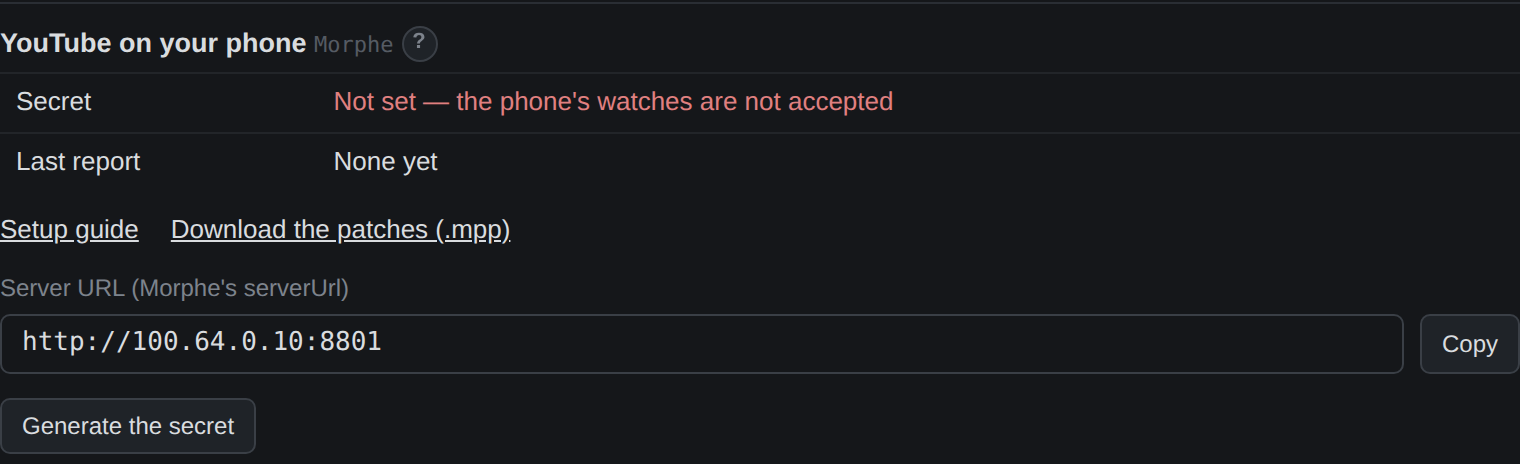
The screenshot shows the card’s older heading, “YouTube on your phone”; it now reads Phone.
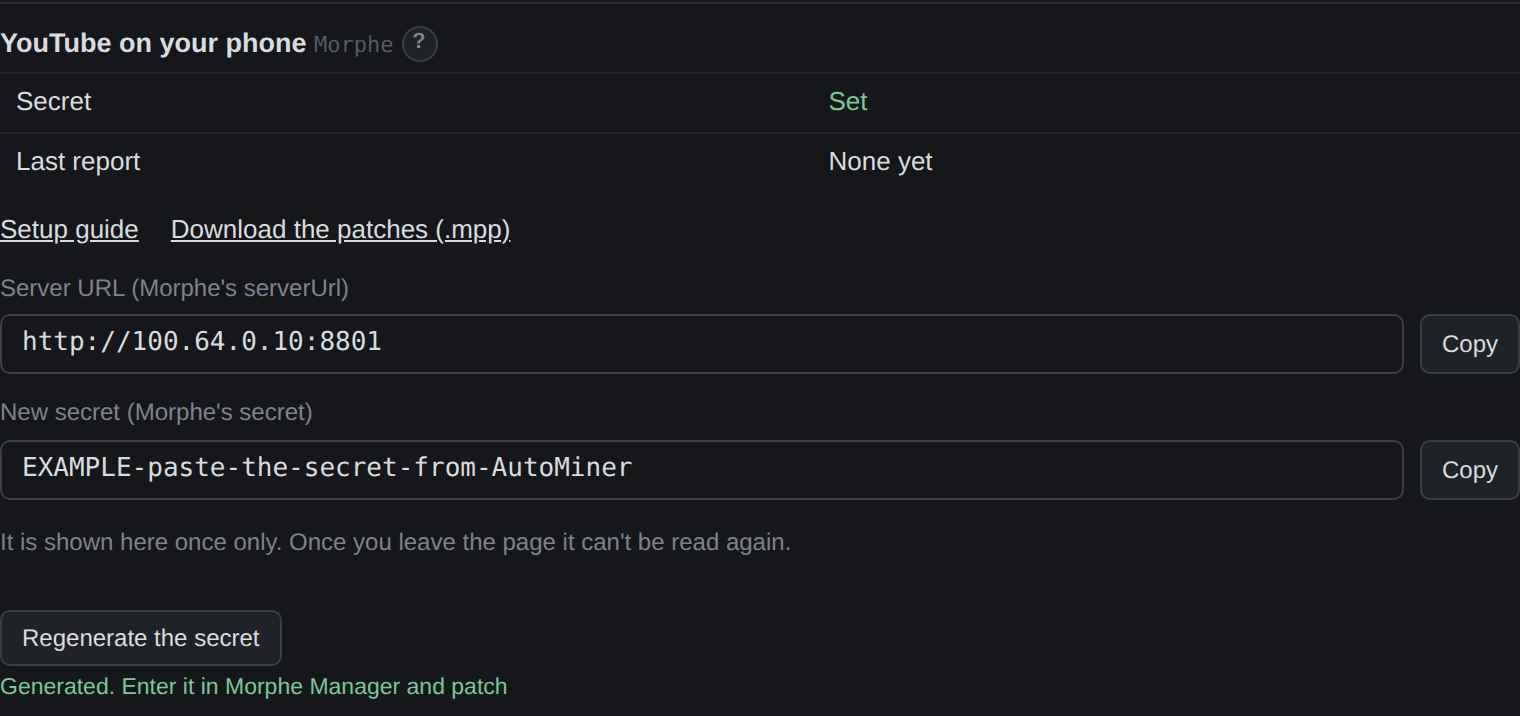
The secret is shown once. Copy it to the phone now (a password manager or a note works); once you leave the page it can’t be read back. If it is lost, make a new one (see Regenerating the secret).
The server stores it as AUTOMINER_REVANCED_SECRET in its secrets directory, so no restart is
needed. If you set AUTOMINER_REVANCED_SECRET yourself in the server’s environment, that value
wins and the button is disabled: change it where you set it.
2. Add the AutoMiner patches to Morphe Manager
Section titled “2. Add the AutoMiner patches to Morphe Manager”-
Install and open Morphe Manager. Open Sources: the official Morphe Patches source is already there.
-
Press +, then Select patch source files, and pick the
patches-<version>.mppyou downloaded. Press Add.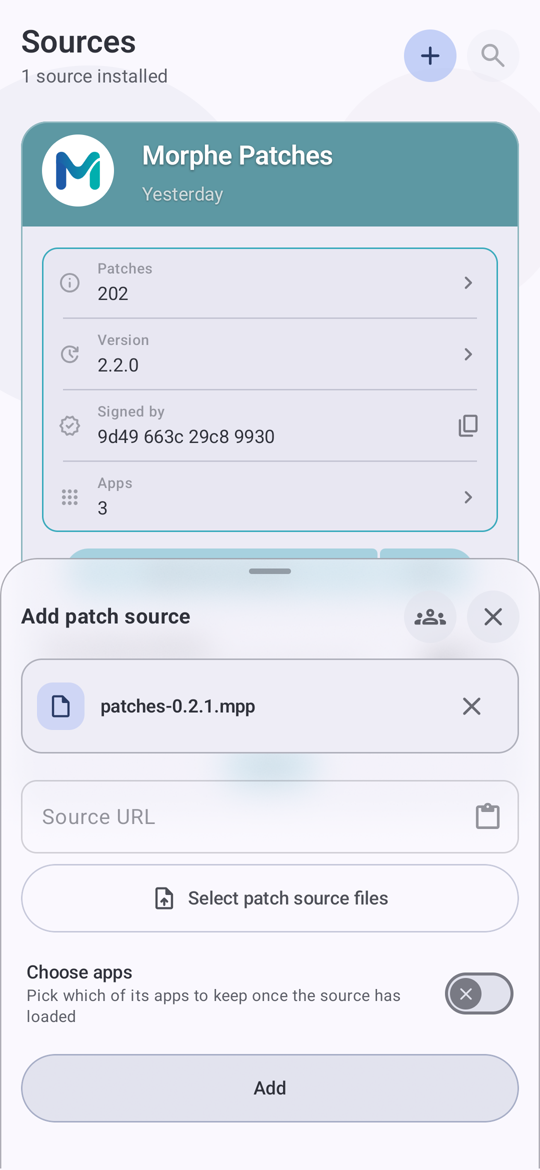
-
Sources now lists both Morphe Patches and AutoMiner Patches.
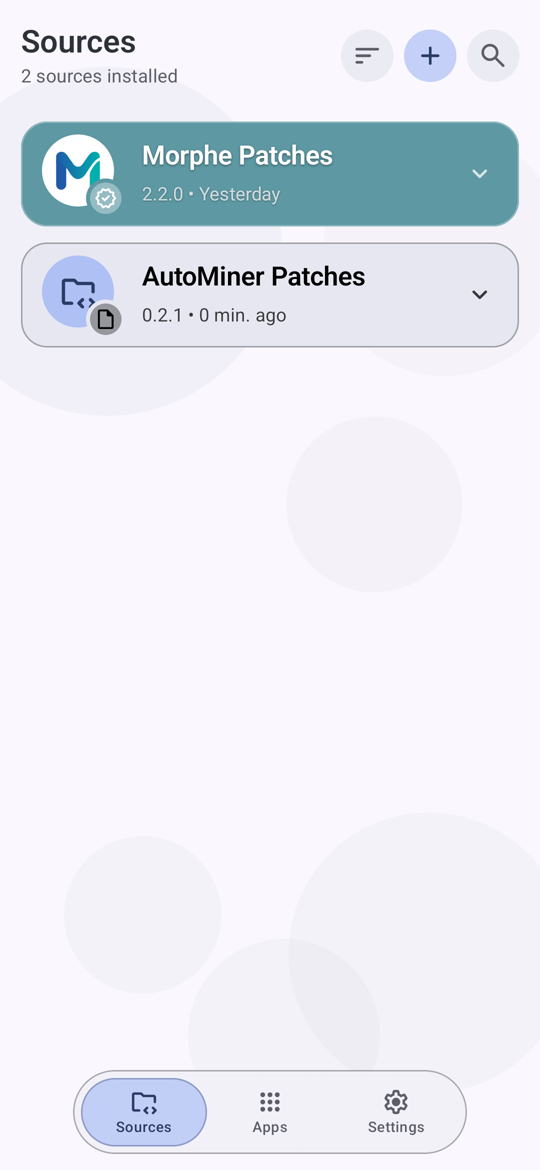
3. Turn on Expert mode
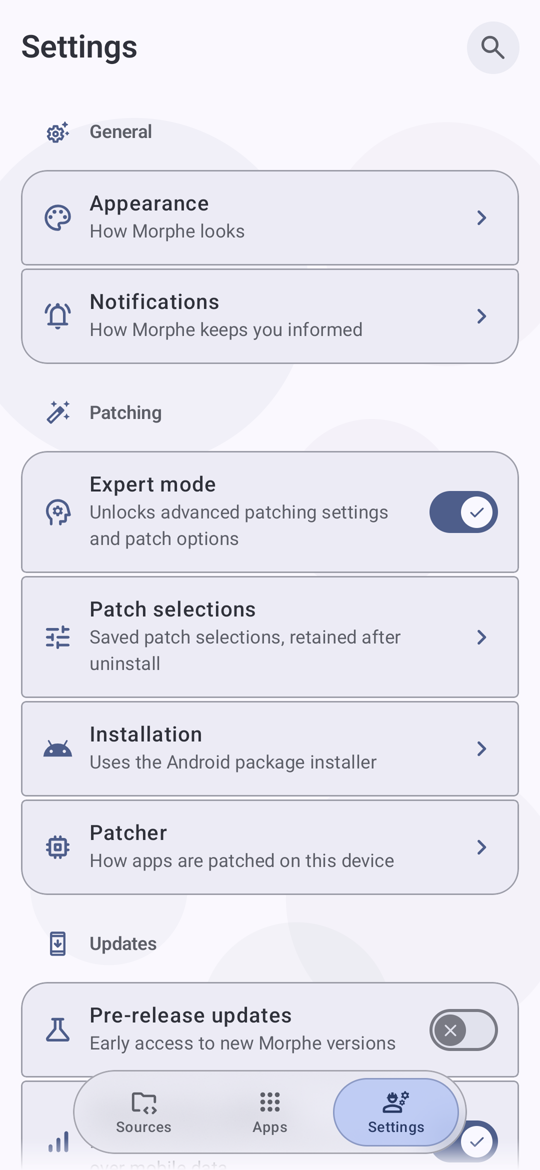
Section titled “3. Turn on Expert mode”Morphe’s simple mode patches with one source; using two needs Expert mode. Settings › Expert mode, then Enable.
4. Patch YouTube
Section titled “4. Patch YouTube”-
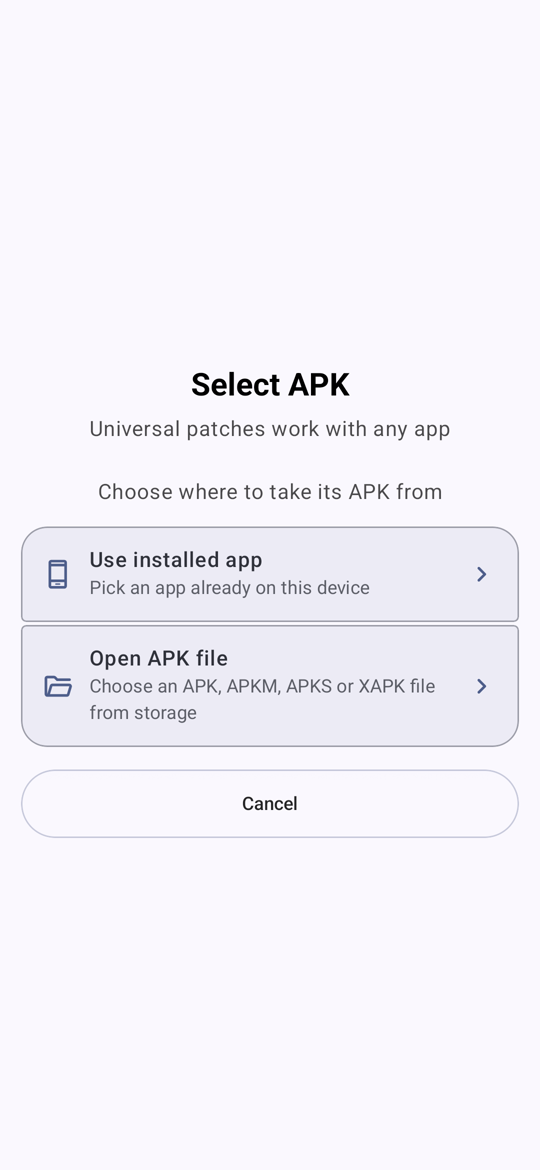
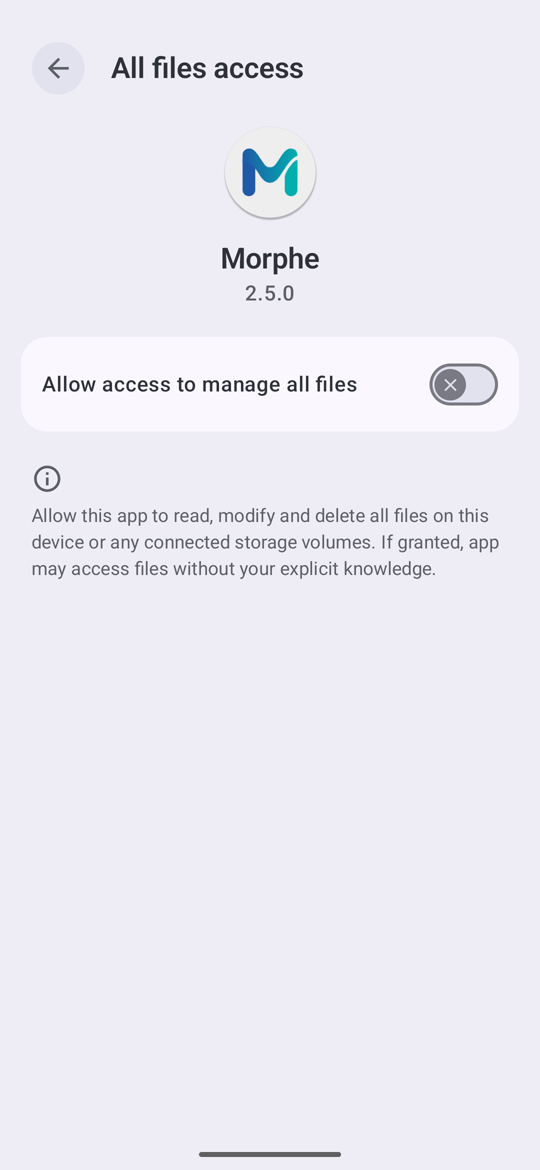
On Apps, tap YouTube, then Open APK file and pick the YouTube APK. The first time, Android asks to allow Morphe access to your files; allow it and pick the APK again.
-
On the patch selection screen, keep both sources selected: Morphe Patches with its default patches, and AutoMiner Patches with AutoMiner watch reporting ticked.
-
Open the settings (gear) icon of AutoMiner watch reporting and fill in:
Option Value AutoMiner server URL the Server URL from step 1, e.g. http://100.64.0.10:8801Shared secret the secret from step 1 Device name how the phone is named on Today, e.g. pixel(letters, digits,.,_,-); empty uses the phone model -
Start patching, then install the patched app. Install MicroG-RE if it isn’t installed yet, and sign in to YouTube.
If a value is missing, patching stops with a message naming the option to set. If you selected only the AutoMiner source, it stops and says the Morphe patches are needed in the same run.
5. Check that it works
Section titled “5. Check that it works”Play any video in the patched YouTube for about 30 seconds. On Settings › Sources › YouTube › Phone, Last report shows the time and the patch version, and the video appears on Today with the phone’s name next to it.
Reports wait on the phone when the server can’t be reached (no Wi-Fi, Tailscale off, the server restarting) and are sent in order once it can. Nothing is lost when the app is closed.
If nothing arrives:
- Admission. If the card says Not approved, your server only accepts producers an
operator approved. Run on the server:
autominer producers approve youtube-android-morphe --operator <you> --note "phone". The phone retries every 10 minutes. - Wrong secret. The server answers 401 and the phone keeps its reports and retries every 10 minutes. Patch again with the current secret.
- Server unreachable. Open the Server URL in the phone’s browser; it must show AutoMiner.
- Logs. With USB or wireless debugging:
adb logcat -s AutoMinerYT.
Regenerating the secret
Section titled “Regenerating the secret”If the secret may have leaked (a lost phone, a shared screenshot), make a new one: Settings › Sources › YouTube › Phone › Regenerate the secret. AutoMiner asks first.
The old secret stops working at once. A phone patched with it can’t send reports until it is patched again with the new one; its reports stay on the phone meanwhile and are sent after. To patch again, open Morphe Manager, tap YouTube, change Shared secret in the options of AutoMiner watch reporting, and patch and install over the existing app.
Updating
Section titled “Updating”When YouTube or Morphe updates, patch again in Morphe Manager the same way; the AutoMiner patch
only reads Morphe’s video hooks, so it keeps working with new Morphe versions. When a new
patches-<version>.mpp is released, remove the AutoMiner Patches source in Manager and add the
new file, then patch again with the same options.
Privacy and security
Section titled “Privacy and security”- The report carries the video id, title, channel, length, position, play state, the device name and the time. The server reads only those fields.
- The secret travels in a request header. Over Tailscale the connection is encrypted; over a
plain LAN
http://address it is not, so prefer Tailscale or HTTPS when the network is shared. - The secret is kept on the server as a file readable only by AutoMiner’s user, and never shown again after it is made.