Reviewing cards
AutoMiner mines the sources you watch into candidate cards and picks the best one for each word. This page covers what you do with them each day: check what was mined, fix a card in the editor, decide what goes to Anki, and fill notes in Anki that still lack a sentence.
How the scores and the Gold pick are computed is in Card scoring and selection. The pages is a short reference to every page.
Terms used on this page
Section titled “Terms used on this page”| Term | Meaning |
|---|---|
| Source | One video, episode or podcast you watched or listened to. |
| Candidate | One possible card: a word you don’t know yet, in one sentence from one source. A word usually has several candidates. |
| Gold | The candidate AutoMiner plans to send to Anki for a word. Each word gets at most one Gold card per source. The Japanese UI calls it 金. It shows as ★. |
| Clip | The audio cut from the source for the card’s sentence. |
| Clip score (✂) | How likely the clip is cut right: it starts and ends with the sentence and holds no part of the lines around it. |
| Mining score (¶) | How good the sentence is as a card: 100% minus deductions. See Card scoring and selection. |
| i+N | How many words in the sentence you don’t know. i+1 means only the target word is new. |
| Edited | A card you made or changed by hand. The Japanese UI calls it 手直し. |
| Auto-send | Sending Gold cards to Anki without you, set up in Settings › Send. |
The left rail holds Today, Sources, Queue and Audit. Spend, Verifier and Settings are under More.
Start on Today
Section titled “Start on Today”Today shows one day: what you watched, and figures about your cards. The Date box at the top picks another day.
The figures
Section titled “The figures”The row of figures at the top shows up to four of ten. By default they are Watch time, Review, Spend and Duplicate.
| Figure | What it shows | Link |
|---|---|---|
| Watch time | Time watched that day, against the 7-day average. | |
| Review | Accepted · OK and Rejected · NG that day: your Approve and Reject in Sources, plus OK and NG from the Queue (a card auto-send sent counts as OK), each card counted once. unchecked counts auto-sent cards that have no OK or NG. | Queue → |
| Spend | The day’s estimated spend and the month’s, split into the check, transcription and translation. | Spend → |
| Duplicate | Words that already have a note in Anki’s duplicate range, waiting to be merged by hand. | Audit → |
| Streak | Days in a row with something watched. | |
| Mining | Candidates mined that day, and from how many sources. | Sources → |
| Anki sends | Cards sent that day, the next send and how many wait. | Queue → |
| Clip score | How often the clip judge is right at the Send threshold. | Verifier → |
| Audit | Open findings, and how many have alternative sentences. | Audit → |
| Known words | How many known words AutoMiner read from Anki. |
To change the figures, press Edit dashboard (the button at the right end of the header). Under Shown, ‹ and › move a figure and × removes it. Others lists the rest; add one while fewer than four are shown. Right column orders the side cards. Press Done when finished. The layout is saved on the server, so every device shows the same one.
The watched sources
Section titled “The watched sources”Under the figures, Watched sources lists every source you watched that day. Chips above the list filter it by platform when you used more than one.
Each row shows the thumbnail, the title, then a line with the platform’s mark, the language, the devices you watched on, and the time watched (Finished for a source you finished without a watch time). A bar under the row shows which part you watched.
At the end of that line is one status mark:
- ✓: the source is up to date.
- A number: that many of the source’s items are out of date (stale). The ↻ button in Sources fixes them.
- A spinning ring: the source is updating.
- A circled !: red when something failed, grey when it was skipped or there is only a note (for example, a language that is fetched but not mined). Press it to read why; a problem that a setting fixes has a Fix → link.
The row is the control
Section titled “The row is the control”There are no buttons on a row. Press the row (or focus it and press Enter or Space):
- A row with candidates opens the source in Sources, with its word list.
- A row not mined yet mines it: AutoMiner fetches the source and mines it. If you study more than one language, it first asks Which language should it be mined in?. While it works, the row shows Working…, then Accepted, Already queued, or Already mined with the number of candidates. When mining is done the row becomes a link to the source’s words. If it fails, the note ends in retry; press the row again.
- A row marked Tracked only can’t be mined.
- A source you deleted but watched that day looks like a row not mined yet. Pressing it brings the source back and mines it. Watch time that can’t be traced back to a source shows as one plain Deleted source row.
If mining is stopped somewhere for a source kind, a banner at the top of Today names the stage and has a Fix → link.
At desktop width, a right column shows Calendar, By source and By device. Each folds from its heading.
Review a source’s words
Section titled “Review a source’s words”Open a source from Today, or from the Sources page. Its page lists one row per word, showing the word’s chosen sentence.
The columns are Word, Sentence, Translation, Clip score, Mining score, i+N, Gold and Count (how often the word appears in this source). The Columns menu (the ≡ button) picks which ones show. A column with nothing to say shows a faint —.
Filters has:
| Filter | Choices |
|---|---|
| Status | All, New, Candidates, Gold, Reject (rejected), Sent, Duplicate, Duplicate, out of range |
| i+N | All, i+1 only, Up to i+2, Up to i+3 |
| Sort | Most frequent or Score (best mining score first) |
Filters only hide rows; they never delete anything.
Open, play, approve, reject
Section titled “Open, play, approve, reject”- Open a card: click the row, or press Enter. The editor opens.
- Play its clip: press Space (again to pause).
- Pick words: press
xon a row, ctrl-click or ⌘-click it, or press and hold it (not on a phone). Once you have picked one, clicking other rows adds them too. A bar shows the picked word, or N words selected, with Reject, Edit (one word only) and Approve. - Approve (
o): the card becomes Gold by your hand and joins the Queue’s Send list. AutoMiner never moves Gold away from a card you approved. - Reject (
n): the card is rejected, and its word goes on your known-words list so AutoMiner does not mine it again. When every picked word is rejected, the button becomes Restore, which undoes the rejection and takes the word off that list.
o and n act on picked words only.
Edit a card
Section titled “Edit a card”The editor opens over the page you are on. It works the same from Sources, the Queue, Audit and Clips.
The head
Section titled “The head”The head shows the word, a ? that opens the Score breakdown, the reading, the language, the word’s count in this source, the card’s status (★ for Gold, ✓ for sent), Edited when you changed it, and Song or Name tags when they apply. The × closes the editor (or press Esc).
Under the head are two tabs: Main and Sentences with a count. Find in lines opens Audit › Lines in a new tab, searching for this word, so nothing you have open is lost.
The sentence, translation and screenshot
Section titled “The sentence, translation and screenshot”The top of Main shows the card’s screenshot beside its Sentence and Translation. Both are editable in place. The target word is bold in the sentence.
- + Line before and + Line after join the neighbouring subtitle line (and its translation) to the sentence.
- Translate translates the sentence again with your translation service. It is a paid request.
The screenshot is the frame AutoMiner took for the sentence. The editor has no way to pick a different frame.
The clip
Section titled “The clip”Below the text is the clip’s waveform, a play button, and status pills: the clip’s length, its clip score (✂) and its loudness against the rest of the source (in dB).
To change where the clip starts or ends:
- Press Edit to show the trim controls: the drag handles, a time ruler, −5s and +5s, and Reset adjustments (↺).
- Drag the start or end handle. The teal window is the part that becomes the clip. When you close the trim controls (press Edit again), the clip pill shows ✂ –, and its tooltip says Range changed · save to rescore.
- Press Save draft or send the card. Only then is the clip cut again and scored again.
A dragged edge that you don’t save is put back when you close the editor or move to another card. If you have unsaved changes, the editor asks first: There are unsaved changes (…). Discard them and close?
To move an edge one frame (1/30 s) at a time, use the keys: , and . move the start earlier and later, < and > move the end. Each press opens a close-up of that edge: its audio around it, where it was saved and where it is now, how many frames it moved, and a short playback. The clip is cut where you left it about 4 seconds after your last press, or when you press Esc. The same keys work on a card’s row in Sources, the Queue or Audit › Clips, without opening the editor.
−5s and +5s add context audio to the waveform. They widen what is drawn, never the clip.
Reset adjustments puts the clip back to its default cut and undoes lines you joined since the last save.
When the source’s video is gone (No local video), the clip can only be trimmed inward, or not cut again at all for an older card. The −5s and +5s buttons say which.
Definition and other fields
Section titled “Definition and other fields”Definition shows the dictionary definition. No definition means Yomitan has not filled it yet; you can still send the card. Note is the card’s MiscInfo field in Anki; type anything you want on the card.
Other fields ▾ holds the rest:
- Refetch definition looks the source’s words up in the dictionary again. If you changed the word, it looks up the new word. Cards you edited by hand keep their text.
- The word (Expression), its reading and furigana, the definition, the sentence’s furigana and the frequency, each editable.
- The note’s other fields, read-only.
Choose another sentence
Section titled “Choose another sentence”The Sentences tab lists the sentences the word has in this source. How many are kept is set by Candidate options limit in Settings › Cards (5 by default). Each shows the sentence, its translation, its status if it differs, its clip score, its screenshot and a ▶ button.
- Click a sentence to open it in the editor.
- Press its round button (Use this) to make it the card’s sentence. If the word’s Gold card has not been sent yet, Gold moves to this sentence. The card is marked Edited.
jandkmove to the previous and next sentence.
Save, send or reject
Section titled “Save, send or reject”The footer has:
- Send to Anki (ctrl+Enter or ⌘+Enter, from anywhere in the editor). If the word already has a note in Anki, this becomes Send…, with Overwrite, Create duplicate and, while Merge Kiku-style is on, Merge. If you set a Duplicate handling in Settings › Send, that one action shows as the button instead. For a card already in Anki, Update Anki replaces its note’s sentence, audio, image and translation.
- Save draft (
s): saves your changes, and cuts the clip again if you moved an edge. - Reject: rejects the card, puts its word on your known-words list so it is not mined again, and closes the editor. On a rejected card the button is Restore, which undoes both.
Sending is never a single key, because a note in Anki can’t be taken back. Anki: setup, fields and sending explains the fields, auto-send and what each duplicate choice does to the note.
The Edited marker
Section titled “The Edited marker”Edited marks a card you made or changed by hand: you saved its fields, chose its sentence with Use this, sent it with edits, or cut its clip again in the editor. It shows in the editor’s head and on Queue rows. In Audit › Clips, search is:edited to find them. AutoMiner’s automatic Gold pick never replaces an edited Gold card.
The scores on a card
Section titled “The scores on a card”| Mark | Meaning | Colours |
|---|---|---|
| ✂ 87% | Clip score: the chance the clip is cut right. | Green at or above the Send threshold (95% by default), amber from 80% up to it, red below 80%. |
| ✂ ? | The source’s audio is not measured yet, so the clip can’t be scored. | |
| — | No clip score: not scored yet, a clip that joins several subtitle lines, or a quiet clip (its tooltip says how many dB below the source). | |
| ♪ Lyric, ♫ Music | The line is a song lyric, or the voice is buried under music. A lyric line is never Gold. A clip buried under music isn’t either, unless Clips buried under music is set to Off. | |
| ¶ 85% | Mining score: 100% minus deductions. | Green from 90%, amber from 60%, red below 60%. |
| i+1, i+2 … | Unknown words in the sentence. | i+1 is green. |
| ★ | Gold. | |
| ×3 | How often the word appears in this source. |
How clips are cut, trimmed and scored is in Clips: cutting, trimming and scoring.
To see why a sentence lost points, open the card and press the ? beside the word. Score breakdown lists each deduction taken, any Instant fail items, who graded the sentence’s quality (This machine, Jev or Fallback) and the total Score. Card scoring and selection explains each deduction and how to change it.
The Queue
Section titled “The Queue”The Queue shows what goes to Anki. It has three tabs.
Send lists every Gold card that has a clip and is not in Anki yet, best clip score first. Cards you approved are here too.
- Next send (or Tomorrow’s send once today’s send is done) holds the cards the next send takes. After that holds the rest.
- Waiting marks a card past the send limit. It goes once the limit has room.
- Send failed · will retry marks a card Anki did not take. The next send tries again.
The line above the list says how sending is set up, for example Auto-send off, or Auto-send on · daily at 07:00 with the limit. With a daily send, Send now sends today’s cards at once. More lines appear when they apply:
- how many duplicates wait, with a link to Audit,
- N Gold cards can’t be sent: … with the reason, for example the clip score is below the threshold,
- when the list is empty, how many words score under Lowest score for Gold, with a link to the setting,
- Gold cards waiting for their source to update, with a link to Sources,
- Sends are held until Anki is read again, when Anki could not be read.
Auto-sent
Section titled “Auto-sent”Auto-sent lists the cards auto-send sent without anyone checking them. Re-cut marks a card whose clip was cut again after it was sent. Anki unconfirmed means Anki did not answer, so AutoMiner can’t tell whether the note was made. Show more loads older cards.
An auto-sent card counts as OK for the clip judge. You only act on the bad ones.
Rejected
Section titled “Rejected”Rejected lists the cards you NG’d, and cards that were deleted in Anki. In Anki marks a card that is still in Anki after its NG. Deleted in Anki marks a card you deleted in Anki; AutoMiner counts it as Sentence unusable and does not send it again by itself.
The Restore button (↺) takes the NG back: the line is no longer excluded, the clip judge forgets the label, and the card returns. A Gold card goes back into Send.
Check a card: play and NG
Section titled “Check a card: play and NG”On every row: click it or press Enter to open the editor, and press ▶ or Space to play the clip. On Send and Auto-sent, press the ✕ (NG) button or n when something is wrong. You can also swipe a row there to the left (or drag it with the mouse) for NG.
NG asks NG — what is wrong?:
| Choice | What it does |
|---|---|
| Audio unusable (the default) | Excludes the line. The clip judge learns this audio is unusable. |
| Sentence unusable | Excludes the line. The sentence is at fault, so the clip judge learns nothing. |
Excluding a line rejects every card of that line in the source, and the line is never mined again. Cards already in Anki stay in Anki. After a swipe, an Undo bar gives you 5 seconds to change your mind.
If only the cut is wrong, don’t NG the card. Open it, move the edges, and save. When you move an edge and save or send, AutoMiner records the old cut as a bad example for the clip judge.
There is no OK button. On the Rejected tab, o restores the row you are on.
The side pane
Section titled “The side pane”On a screen at least 1400 px wide, the Queue shows the row you are on in a side pane: the word, the screenshot, the sentence with the lines before and after it, the waveform with the clip window, and the clip’s Clip score, Lead (silence before the speech), Tail (after it, with may be cut when it is too short) and Speech length. Hear around plays the clip with the neighbouring lines. Re-cut opens the card in the editor.
Audit: fill Anki notes that lack a sentence
Section titled “Audit: fill Anki notes that lack a sentence”Audit finds notes in Anki that need a real sentence, and fills them from your sources.
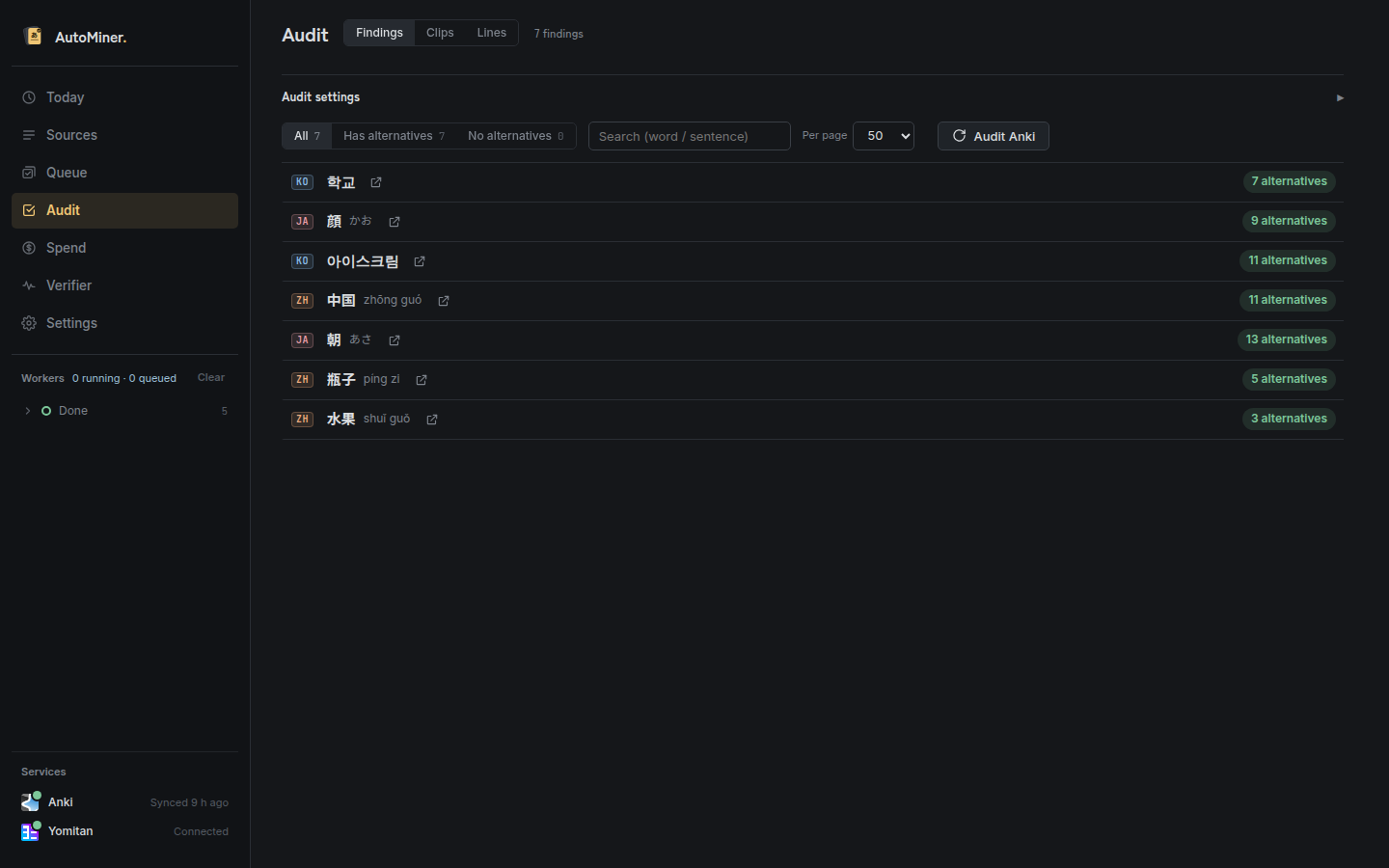
Mark notes in Anki
Section titled “Mark notes in Anki”A note becomes a finding when it carries one of the tags in Audit settings › Tags to replace. The default tag is nosentence. Open Audit settings at the top of the Findings tab (it is also in Settings › Upkeep) to add or remove tags, then press Save.
- In Anki, add the tag
nosentenceto the notes you want filled. - On the Findings tab, press Audit Anki. AutoMiner also audits again each time it reads Anki’s known words. The button’s tooltip says when the last audit ran and what it found.
Work through the findings
Section titled “Work through the findings”Each row shows the language, the word (point at it for its reading), ↗ (opens the note in Anki), the note’s tags, N alternatives (how many sentences your sources have for it) and the note’s current sentence. Rows with alternatives come first. The chips All, Has alternatives and No alternatives filter the list, and the box searches words and sentences.
In the background, AutoMiner cuts a clip of every subtitle line in your sources that says the word. These clips are only for findings: they are not in the Queue and are not counted as mined.
- Open a finding (click it, or press Enter). The editor opens on its best sentence: the one with the highest clip score, or the newest source on a tie.
- Check the sentence and clip as for any card. The Sentences tab lists every alternative, grouped by source, newest first. A line still being cut shows Making; Not made if its cut failed, No audio without the video. Its Cut button cuts it now and opens it.
- Put the sentence on the note from the footer’s Send… menu:
| Choice | What happens to the note |
|---|---|
| Merge | Adds this sentence, with its translation, audio, image and note, to the note as one more page (Kiku, while Merge Kiku-style is on). |
| Overwrite | Replaces the note’s sentence, translation, audio, image and source. It asks first. |
| Create duplicate | Makes a new note for the same word, next to the old one. |
| Keep note | Leaves the note as it is. |
If you set a Duplicate handling in Settings › Send and the note is in the duplicate range, the footer shows that one action as a button instead, plus Keep note.
Each choice closes the finding once Anki has it. The note’s audit tag is replaced by <tag>:resolved (for example nosentence:resolved), so it is never found again. The sentence you used becomes your own card. The word’s other pre-cut clips are deleted.
If Anki can’t be reached, nothing changes and the editor says so. Save draft keeps your edits for later. If the note was deleted in Anki, the footer offers Close finding.
Audit › Clips
Section titled “Audit › Clips”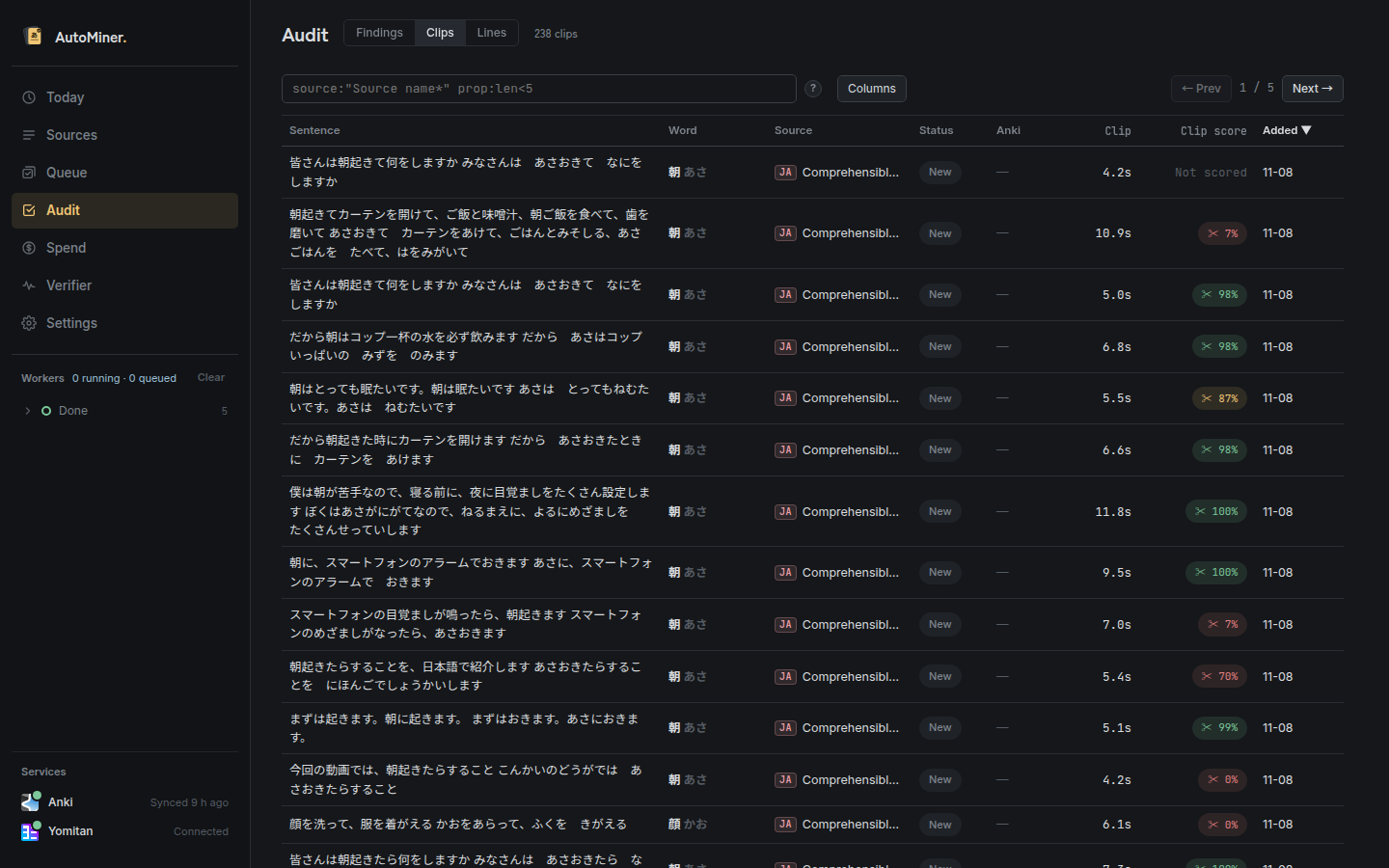
Clips lists every clip as one table. Search it the way Anki’s browser searches; the ? beside the box lists the terms. Some useful ones:
| Search | Finds |
|---|---|
status:gold |
Gold cards. Also new, reviewing, exported, deleted, duplicate, known. |
is:edited |
Cards you changed by hand. |
is:sent |
Cards sent to Anki. |
prop:clipscore>0.8 |
Clip score above 80% (written from 0 to 1). |
prop:score>90 |
Mining score above 90%. |
source:Name* |
Clips from sources whose name starts with Name. |
added:7 |
Clips added in the last 7 days. |
Terms separated by spaces must all match; or means either; a leading - negates.
The columns are Word, Sentence, Source, Status, Clip (length in seconds), Length (of the sentence), Added, Clip score, Song, Loudness, Mining score, i+N and Name. Columns picks which show.
Click a row or press Enter to open it in the editor; its Sentences tab lists the word’s sentences in every source. Ctrl-click or Shift-click selects rows, ctrl+Delete deletes the selected clips (the sentence stays; the clip goes to the trash), and ctrl+Z right after undoes it. Deleting needs these keys, so delete clips on a computer.
The Lines tab lists every subtitle line of your sources, so you can make a card from any line. See The pages for how it works.
Verifier: how far to trust the clip judge
Section titled “Verifier: how far to trust the clip judge”The clip judge is the model that gives each clip its clip score. Auto-send only sends clips at or above the Send threshold. Verifier shows how well that works:
| Figure | Meaning |
|---|---|
| Send threshold | The auto-send bar. Settings → opens it. |
| Precision | How often a clip at or above the threshold was good, measured on episodes the judge never trained on. Error bound is the 95% upper bound on the error rate. |
| Scoring model | How many judged clips the model trained on, its date, and how many of those came from the Queue. |
| OK / NG since training | The OK and NG labels recorded since the model was trained (with the all-time totals). Auto-sent cards count as OK; Queue NGs as NG. |
| Sends, last 30 days | How many auto-sent cards were checked, and how many of those were bad. |
Checks by threshold repeats the measurement at every threshold the training tried, for All clips a person judged and for Clips cut in production. Kept is how many clips clear the threshold, Bad how many of those were bad, and Good clips how many of the good clips it keeps. The highlighted row is the one the current threshold is measured at.
Read it like this: raise the threshold for fewer bad clips but fewer cards; lower it for more cards and more mistakes.
Excluded lines lists every line you excluded with NG. A row’s title opens its source. Restore un-excludes the line. To mine it again, run Recalculate on its source.
The model ships with AutoMiner. Your checks are kept as labels but do not retrain it on their own.
Keyboard shortcuts
Section titled “Keyboard shortcuts”Keys don’t work while you type in a box. These can be changed:
| Action | Default key | Where |
|---|---|---|
| Next | k |
Moves down a list (past the last row, on to the next page). In the editor: the next card of the list behind it (Main), the next sentence (Sentences), or the next word (Lines’ Words tab). |
| Previous | j |
The same, moving up. |
| Switch tabs | q |
Switches a page’s tabs, and the editor’s Main and Sentences (Main and Words in Lines). Shift+q goes back. |
| Play | Space | Plays the row’s clip on a list of cards, or the card’s clip in the editor. |
| Start 1 frame earlier | , |
Editor, and a card’s row in Sources, the Queue or Audit › Clips. |
| Start 1 frame later | . |
The same. |
| End 1 frame earlier | < |
The same. |
| End 1 frame later | > |
The same. |
| Save draft | s |
Editor. |
| Generate translation | t |
Editor (a paid request). |
| OK / Approve | o |
Approves the picked words in Sources. Restores the row on the Queue’s Rejected tab. |
| NG / Reject | n |
NG in the Queue. Rejects the picked words in Sources. |
| Select / deselect | x |
Picks or un-picks a word in Sources. |
To change one, go to Settings › General › Shortcuts:
- Press the key shown on the action’s row.
- Press the new key. Esc cancels. Only a single key works, without ctrl or similar.
- Press Save changes (or ctrl+S). The new keys apply on every page and every device.
A key used by two actions turns both rows red and can’t be saved. Space can only be Play, / is reserved for search, and Switch tabs must be a letter. Back to default puts one key back.
These keys are fixed:
| Key | Action |
|---|---|
| ↑ / ↓ | Move up or down a list, like j / k. |
/ |
Puts the cursor in the page’s search box. |
| Enter | Opens the row in hand. |
| Esc | Closes the editor (or the edge close-up first), or clears a selection. |
| ctrl+Enter / ⌘+Enter | Sends the card in the editor to Anki, or updates its note. |
| ctrl+S / ⌘+S | Saves every change on the Settings page. |
| ctrl+A, ctrl+Delete, ctrl+Z | Select all, delete and undo in Audit › Clips. |