The judge
The judge is the service that answers AutoMiner’s yes/no and pick-one questions about text. Its main job is the subtitle check: deciding whether a source’s subtitles are timed to its audio, and fixing them when they are not. The English UI calls the service Judge service and its verdict Check or Subtitle check; the Japanese UI calls the verdict 判定.
The judge answers four kinds of question, all from the same service:
| Task | What it decides | Where you turn it on |
|---|---|---|
| Subtitle check | Is each heard stretch speech, singing or another language, and which subtitles show what was said there | Settings › Subtitles › Check mode |
| Line joins | Are two subtitle cues one sentence split in two (Japanese) | with Check mode |
| Sentence quality | Is a mined sentence run-on, too long, a fragment or garbled | Settings › Cards › Score deductions › Judge with Jev |
| Line checks | Was each measured line really said | Settings › Subtitles › Check each line with the judge service |
Where the subtitles come from and how to fix timing by hand is in Subtitles.
What the subtitle check decides
Section titled “What the subtitle check decides”Subtitle files are often timed for a slightly different video: a release with a longer opening, a TV cut, a fansub made for another encode. Then every line shows a second early, or the second half drifts away from the speech, and clips cut from those times start or end in the wrong place.
The check settles this by listening:
- It transcribes the audio. The whole source is transcribed in pieces of about two minutes, with the Transcription runner you set. The transcription is “blind”: it is not told what the subtitles say.
- It gathers the candidates. The subtitles in use, every subtitle file kept for the source (the subtitle pool, files you loaded, extracted tracks and earlier check results), and for each of them a shifted version at the offset the transcription suggests, or a version retimed line by line.
- It asks the judge about each piece of audio: is this spoken dialogue, singing, or not the source’s language? Singing and other languages are left out.
- It counts. For each candidate, AutoMiner counts the lines it places where their words were heard. The candidate that places the most lines wins, as long as it clears a minimum match rate and leads the runner-up clearly. In a close race, the judge is asked about the disputed stretches: is what was heard among the lines each of the two leaders shows there? It matches by sound, so a name written in kanji still matches the same name heard in kana.
The outcome is one of six verdicts. Two of them are refusals, not decisions: nothing is changed when the check could not do its job.
| Verdict (English UI) | Japanese | What it means |
|---|---|---|
| Apply | 適用 | Another timing fits better, and it was applied: a constant offset, a line-by-line retime, or a different subtitle file (for example one made for another cut). |
| Leave as is | 現状維持 | The subtitles in use match the audio, or nothing beats them by enough. |
| Needs review | 要確認 | The check found something it will not decide alone, or could not finish. You pick. |
| Too little evidence | 証拠不足 | Fewer than 3 stretches of speech could be compared (a music video, a mostly silent source). |
| Service not set | サービス未設定 | Something the check needs is missing. |
| No candidates | 候補なし | There were no subtitles to compare. The transcript becomes the source’s subtitles, marked for review. |
A constant offset on the subtitles already in use is applied as the source’s offset, the same one you can move by hand. Any other change is written as a new subtitle file next to the others and switched to, so the original file is never changed.
After the check
Section titled “After the check”When the check applies new timing or confirms the subtitles in use, AutoMiner measures where each line is spoken (the Workers strip shows Measure word positions). It transcribes the source again around every line and finds each line’s own words. Then:
- each line that is off moves by its own error (shown as “Applied: Line times fixed by listening” on the subtitle screen, with Undo alignment), but only while Check mode is on;
- the measured word positions time the clips’ edges and feed the clip score (see Clip trimming);
- the subtitle screen shows how well each line was heard.
Then the source’s clips are cut, or cut again.
When the check runs
Section titled “When the check runs”The check runs only for kinds of source with Check mode on (Settings › Subtitles; OFF by default). Spotify podcasts are never checked. Nor is a YouTube video whose lines are AutoMiner’s own transcript: there is no other file to compare it with.
Automatically, once per set of subtitles. After AutoMiner mines a source, it checks the source’s subtitles if:
- the source has candidates,
- its local video file is still on disk (the check needs the audio),
- the transcription runner is set up,
- these subtitles have not been checked yet.
The subtitles count as new, and are checked again, when their lines change: a first fetch, a fetch again, a file you loaded or saved, or a read again after you changed a reading rule. What the check itself writes, cues joined by the judge, an offset you set by hand and Recalculate do not make them new.
When the judge is not ready. If everything else is set up but the judge is not (no Jev key and the local judge not downloaded, or it is still downloading), the check is owed. It runs as soon as the judge is ready.
By hand. Check by audio on the subtitle screen runs a full check whenever Check mode is on and the services are set up, even for subtitles already checked. It gathers the subtitle pool again first. The message reads “Check queued (it applies the result too)”. Update subtitles on the same screen also gathers the pool, and, with Check mode on, a check follows it.
Clips wait for the first check. While Check mode is on and the check can run, a source’s clips are not cut, and its cards not auto-sent, until its current subtitles have been checked once. A Needs review verdict does not hold clips back: every clip is still scored on its own, so a badly timed clip scores low and is held on that.
Outages are retried, never judged on. A stretch the transcription service could not hear (no connection, a quota or overload answer) is asked again after 5 and 30 seconds. If stretches are still lost and the rest cannot settle the question, the check records no verdict about the episode: the source shows “Awaiting subtitle check · could not check” (after a press of ↻, “Could not check: speech recognition was down”), and its subtitles count as not checked. The next mining run tries again, up to three automatic tries for the same subtitles; after that, press ↻ Fix dependencies or Check by audio. A stretch heard while the separation service was down is kept and heard again once the service answers.
Transcriptions are cached per source, so a later check of the same audio reuses them as long as the runner, its model and the separation are the same. To make the next check hear everything again, open the source’s More actions menu and press Re-read. With a cloud runner, that costs the transcription again. The menu also shows which transcriber made the cached reads and when.
Choosing the judge
Section titled “Choosing the judge”Settings › Services › Judge service has two choices:
| Choice | Runs | Needs | Notes |
|---|---|---|---|
| This machine | the local judge, a small model on the AutoMiner server | a one-time download: about 1.1 GB or 2.7 GB, by judge model | no key, no per-call cost |
| Jev | the hosted judge (api.typesafe.ai) | a Jev API key | Jev is greyed out until a key is set |
Which one is used:
- No Jev key: always This machine, whatever was chosen.
- A Jev key: Jev, until you press This machine.
To add a Jev key, open Settings › Services › API keys and fill in Judge service (Jev). Saving the key, or deleting it, releases any judge work that was waiting.
Switching the judge, or the local judge’s model, checks nothing again. Answers already given are kept, each with the judge that gave it. A running check, line-join pass or sentence-quality pass keeps the judge and the model it started with.
That the local judge becomes the default for every install, including those with a Jev key, is planned (ADR 0002, issue #1493).
The local judge
Section titled “The local judge”Judge models
Section titled “Judge models”The local judge runs one of two judge models. Each is pinned by SHA-256 and its licence file is saved next to it. Only one model is on disk at a time.
| Judge model | Size | Licence | Free GPU memory it needs |
|---|---|---|---|
| h2o-lightning-4B | 2.7 GB | Apache-2.0 | 3640 MiB |
| d1-2B | 1.1 GB | LFM Open License v1.0 | 2000 MiB |
h2o-lightning-4B is the more accurate, d1-2B the smaller.
Which one AutoMiner picks. AutoMiner ranks the models for this machine. A model is fast here when its check (below) measured at most 1 second per new sentence, or, before it has been checked, when the first GPU has the free memory it needs. Fast models come first, the more accurate first; the others follow, smallest first. A machine without such a GPU therefore gets d1-2B, and d1-2B is kept on every machine, however slow. Unless you pick a model, AutoMiner uses the first one.
Picking one yourself. The Judge model row on the Judge service card is a list of the models in this ranked order, each with its size. Choose another to switch: AutoMiner downloads it next to the current one, checks it, and only then switches to it and deletes the old files. The current model keeps answering until then. Your pick is kept whatever its speed. Stop during a switch keeps the model that answers now, and makes it your pick.
The check after a download. A downloaded model is asked 21 fixed questions covering all
four judge tasks, on a second judge server of its own, and its sentence-quality answers are
timed. A model AutoMiner chose itself that takes more than 1 second per new sentence is
deleted, and the next model down is tried. On a fresh install, d1-2B answers at once and is
checked afterwards. The check’s log is $AUTOMINER_HOME/judge/check.log.
A check that cannot run at all (its judge server does not start, say) counts as failed. That model is deleted unless it is the one answering, the next model down is tried, and the Workers strip shows Download this machine’s judge as failed, with the reason. No later start checks that model again. To try it again, pick it, press Download or choose This machine; a change of hardware tries again too. If it was your pick, it stays your pick, and the model AutoMiner would choose answers meanwhile.
A slow check is measured once more when it ran on the CPU while a GPU was listed (the GPU was busy at the time), or when it is more than 30 days old. A check within 1 second is never repeated.
While the judge is ready, the text that says where it runs is green when the model’s check measured at most 1 second per new sentence, orange up to 2 seconds, and red when slower.
When the hardware changes. Every start of AutoMiner runs Download this machine’s judge again while the local judge is in use: you pressed Download or chose This machine, or it is downloaded and is the judge in use. A local judge that is downloaded while Jev judges is left alone. The start reads again only files whose size or date changed since they were checked, lists the GPUs, and downloads nothing when nothing changed. A listing that fails (it times out, or the GPU build cannot run) is not a change: the last GPU seen stands. When the hardware differs from last time, the speeds are measured again, and AutoMiner’s own pick is switched if another model now comes first. Your pick stays.
Download it
Section titled “Download it”- Open Settings › Services. The Judge service card is at the top.
- With This machine chosen, the Judge model row shows the model AutoMiner picked for this machine and says Not downloaded. Choose another model first if you want, then press Download. (Switching from Jev to This machine starts the download by itself.)
- A progress bar fills, with a Stop button. The Workers strip shows Download this
machine’s judge, with the step: Checking, Download, Downloading from the
start, Unpacking, then
checkwhile the model is checked. - When it is done, the row shows what the judge runs on: the GPU’s name, or “CPU n threads”. When a GPU build is present, until the judge first starts it shows where the check ran (blank before any check).
What is downloaded into $AUTOMINER_HOME/judge (see Configuration for
where $AUTOMINER_HOME is):
| File | Size | When |
|---|---|---|
| The judge model and its licence | 1.1 GB (d1-2B) or 2.7 GB (h2o-lightning-4B) | always, one model |
| A pinned llama.cpp server build for the CPU | 13 to 26 MB, by platform | always |
| The same build for Vulkan GPUs | about 37 to 39 MB | Windows and Linux on x86-64, only when a Vulkan driver is installed |
Every file is checked against a fixed SHA-256 before it is kept. An interrupted download keeps its partial file and resumes where it stopped. While other work waits, the download steps aside every 30 seconds and then continues, so the queue keeps moving.
- Stop cancels the download and deletes the partial files.
- Stopping the job from the Workers strip only pauses it: the next start of AutoMiner resumes it.
- The trash button (asked first: “Delete Judge model d1-2B?”) stops the judge and deletes the whole folder. It is refused while a download runs. A start’s run that has nothing to download and has not begun yet is cancelled instead.
You can also download from the server’s command line:
autominer judge fetchIt downloads, checks and picks the same way, and a second run downloads nothing. Held judge work is released when AutoMiner next starts.
When the download finishes, AutoMiner releases everything that waited for the judge: held checks and line checks, owed checks, and the line-join pass.
Where it runs
Section titled “Where it runs”| Platform | Supported |
|---|---|
| Windows, x86-64 | yes (needs the Microsoft Visual C++ 2015-2022 Redistributable, x64) |
| Linux, x86-64 | yes |
| Linux, arm64 (for example a 64-bit Raspberry Pi system) | yes, CPU only |
| macOS, Apple silicon | yes (the CPU build uses Metal) |
| macOS, Intel | yes |
On any other platform the download fails with “no pinned llama.cpp CPU build” (shown on the job in the Workers strip), and the row still says Not downloaded.
GPU or CPU. On Windows and Linux x86-64 with the Vulkan build, AutoMiner first tries the GPU. The GPU is used only if the server starts on it in time and answers a two-question self-check correctly twice, the second time within half a second. In time means 20 seconds, or the time to read the model at 30 MB/s when that is longer: 37 seconds for d1-2B, 90 seconds for h2o-lightning-4B. Otherwise, and on every other platform, the judge runs on the CPU with up to 4 threads for the rest of that run of AutoMiner. A GPU is never required.
How it runs. The first question starts one llama-server process, listening only on
127.0.0.1 on a free port. It stops when AutoMiner stops. If it dies during a question, it is
restarted once. If it cannot start, it is not tried again for 5 minutes, and questions in that
time fail with the same reason. Its log is $AUTOMINER_HOME/judge/server.log.
When the local judge fails
Section titled “When the local judge fails”Each failure has a named reason, shown on the source’s subtitle screen and on the job in the Workers strip. A judge that is missing or still downloading also shows in Settings › Subtitles › Services the check uses. Work that only waits for the judge to be ready is held without a verdict and never given up. Any other failure ends that check as Needs review with the reason, and the next mining run tries again (up to three automatic tries for the same subtitles).
| Message | What to do |
|---|---|
| This machine’s judge is not downloaded (Settings › Services › Judge service) | Press Download. |
| This machine’s judge is downloading | Wait; the work resumes when it is done. |
| This machine’s judge needs the Microsoft Visual C++ 2015-2022 runtime | Install the Visual C++ 2015-2022 Redistributable (x64) on the Windows server. |
| This machine’s judge could not start | Read $AUTOMINER_HOME/judge/server.log. It is not tried again for 5 minutes. If files are damaged, delete the judge and download it again. |
| Cannot reach this machine’s judge | The judge’s server stopped answering. AutoMiner restarts it once; if it keeps failing, read server.log. |
| This machine’s judge model is not a decision model | The server loaded a model that does not give yes/no answers. Delete the judge and download it again. |
| The request is too large for this machine’s judge, This machine’s judge refused the request, This machine’s judge hit an error, Cannot read this machine’s judge’s answer | Press Check by audio to try again. If it repeats, switch the judge to Jev (it applies to every source), or fix the timing by hand. |
Services the check needs
Section titled “Services the check needs”Settings › Subtitles › Services the check uses shows the state of the three:
| Row | Needed | What to set |
|---|---|---|
| Transcription · required | yes | the Transcription runner (below) |
| Judge service · required | yes | the local judge, or a Jev key (above) |
| Voice separation · optional | no | Separation mode; without it the check hears the mixed audio, which is less accurate when people sing |
While a required row is not set, nothing is checked, and the source shows the reason.
The transcription runner
Section titled “The transcription runner”Settings › Subtitles › Transcription runner picks who transcribes for the check and the line measuring. It is separate from Subtitle transcription, which makes subtitles for videos that have none.
| Runner | Cost | Setup |
|---|---|---|
| Container — transcription service (default) | free | Run the transcription container on any PC or NAS and enter its address in Settings › Services › Service addresses › Transcription service URL, for example http://<host>:9300. Test checks it; Download gives an installer. See Self-hosting the separator and the recognizer. |
| Cloud — OpenAI | about $0.06 to $0.18 per episode | an OpenAI key |
| Cloud — ElevenLabs Scribe | about $0.06 to $0.18 per episode; fast and gives the same result every time | an ElevenLabs key with Speech to Text access |
| This machine — Whisper | free | Run pip install "autominer[whisper]" on the server. The large-v3-turbo model (about 1.6 GB) downloads on first use. The card says “This machine: installed · Model present” when ready. |
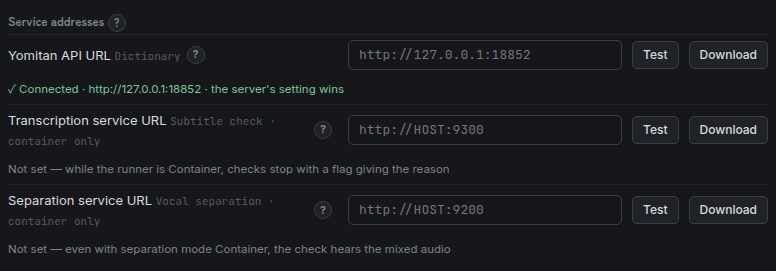
With the container runner and no address, no check runs: the Transcription · required row and the subtitle screen’s check card (“Cannot check — not set: …”) name what is missing. Cloud transcription is a paid call: it counts toward your spending limits and shows on the Spend page as the check’s share. Settings › Subtitles › Transcription use (30 days) lists the minutes sent and their estimated cost.
Voice separation
Section titled “Voice separation”Singing over music is hard to transcribe. With Separation mode set, the check first pulls the voice out of the music, then transcribes it. It is slow, so turn it on only for kinds of source with a lot of singing. The container and its address are described in Self-hosting; never run the separator on a Raspberry Pi.
Settings for the check
Section titled “Settings for the check”All in Settings › Subtitles, on the Subtitle check card.
| Setting | Default | What it does |
|---|---|---|
| Check mode | OFF | ON: subtitled sources are checked automatically, once per set of subtitles, and the verdict is applied. OFF: nothing is checked, Check by audio is unavailable, and the check’s answers are not shown. |
| Transcription runner | Container — transcription service | See above. |
| Advanced › Spans to hear (max) | 12 (3 to 48) | Only for a sampled check requested through the API. Checks from the app always hear the whole source. |
| Advanced › Check each line with the judge service | OFF | ON: after measuring, the judge also confirms by sound that each heard line was really said. This rescues lines whose match % is low because of spelling or names. A few judge calls per episode. It cannot be turned on while the judge is not ready. |
Check mode and Transcription runner can differ per kind: the YouTube and Stremio tabs override the Shared tab. Turning Check mode off during a check stops it from changing anything.
The Recommended cost preset in Settings › Overview turns Check mode on with ElevenLabs for transcription. Its tooltip says it needs a Jev key; it does not, the local judge works too.
What you see and what to do
Section titled “What you see and what to do”In the Sources list and on a source’s page
Section titled “In the Sources list and on a source’s page”With Check mode on, a source whose subtitles are not confirmed says so after its title:
| Status | Meaning | What to do |
|---|---|---|
| Awaiting subtitle check · not checked | No check has run on these subtitles yet | Wait, or press Check by audio. |
| Awaiting subtitle check · could not check | The last check could not finish (a service was down or missing) | Fix the service, then press ↻ or Check by audio. |
| Awaiting subtitle check · needs review | The check finished but would not confirm the subtitles | Pick the right subtitles yourself (below). |
The tooltip adds: “pick a subtitle under “Check candidates” on the subtitle screen and save to settle on it”.
A source can also show a line under its title when its fix is stuck:
- “Could not check: speech recognition was down”: press ↻ to try again.
- “The original subtitle file is gone, and this machine cannot run the check”, or “Cannot re-read: the subtitle file does not match the current lines”: press Pick from “Check candidates” on the subtitle screen.
In the source’s dependency graph, Line times says “Not checked by audio” while the check is owed, and “Placed n/m lines” after it.
On the subtitle screen
Section titled “On the subtitle screen”Open the source and press the subtitles button (tooltip Sync subtitles). The Subtitle check by audio card shows:
- the verdict and its reason, for example Leave as is with “The subtitles shown now match the audio”;
- how much matched, for example “402 of 415 lines placed”;
- what was done, for example “Done: apply a constant offset of +1.2s”, “Not done: …” (the check was stopped before writing), or “Could not …” with the reason;
- See evidence, which opens the candidates the check compared (lines placed, lines heard, match rate and its floor, the runner-up and the lead) and any stretches it could not use, with why;
- Check by audio.
With Check mode off, the card says “Check mode is OFF” and “Turn on Settings › Subtitles › Check mode to check by audio and apply”. With a service missing, it says “Cannot check — not set: …” and names it.
| Reason shown | What to do |
|---|---|
| Found subtitles that match the audio | Nothing. |
| The subtitles shown now match the audio | Nothing. |
| The candidates are close to the subtitles shown, so they were kept | Nothing, or compare the candidates yourself. |
| Other subtitles matched with the same offset, so the shown subtitles’ times were corrected | Nothing. |
| The candidates are close to each other but all beat the subtitles shown, so the top one was applied | Check a few lines; pick another candidate if the top one is wrong. |
| No candidate matched well enough | Pick a candidate, load a better file, or shift the offset by hand. |
| Only part of the audio has subtitles (e.g. only the first half) | Find a complete file (Update subtitles, a Jimaku key, or Load subtitles). |
| Generated subtitles cannot be checked automatically (check with other subtitles) | A transcript cannot confirm itself. Add real subtitles, or accept it. |
| The candidate subtitles are off in timing too often, so the generated ones were kept | Keep the transcript, or pick a file and shift it by hand. |
| Generated subtitles retimed to the audio (text not checked) | Nothing; the text is still the transcript’s. |
| Too few windows could be compared | Little speech in the source’s language. Fix timing by hand if needed. |
| No subtitle candidates to compare | The transcript is now the subtitles. Add a subtitle file if you have one. |
| Cannot reach the transcription service, Could not transcribe the windows to hear | Start or fix the transcription service, then Check by audio. |
| No transcription service is set | Set the Transcription runner. |
| Cannot reach the judge service, The judge service is busy, The judge service refused the request | Jev had a problem. Press Check by audio later, or switch to This machine. |
| The subtitles changed after the check (check again), The checked subtitles have changed (check again), This evidence was already applied (check again) | The subtitles moved while the check ran. Press Check by audio. |
| Could not write the subtitle file (check disk space and permissions) | Free disk space on the server, then Check by audio. |
| Check mode changed during the check, so the apply was undone | Turn Check mode back on and check again. |
Picking a check candidate
Section titled “Picking a check candidate”After a check, the subtitle cards start with Check candidates (times fixed by audio). Each entry is one subtitle as the check measured it:
- how it was corrected: “shift +1.20s”, “retimed per line” or “no shift”;
- its rank: “#1 Adopted by the check”, “Top · not adopted”, or “Match rate below the floor”;
- “placed n/m lines (pct)” and “heard n lines”.
To settle a source yourself:
- Click a candidate. The player and line list show it with the check’s times.
- Listen to a few lines.
- Press Save. The source switches to that subtitle, with the check’s times, and this counts as a passed check: the source is confirmed and its clips are scored. If the switch changes the lines, AutoMiner asks whether to keep the cards you edited by hand before it mines again.
To confirm the subtitles already in use, click the candidate marked In use and press Save (“Settled the check on …”).
A candidate cannot be picked when the subtitles in use, or the reading rules, changed after the check, or when its file can no longer be read. The entry says which. Run Check by audio again.
Line joins, sentence quality and line checks
Section titled “Line joins, sentence quality and line checks”These use the same judge as the subtitle check.
Line joins. For Japanese subtitles with Check mode on, the judge is asked about pairs of neighbouring cues that look like one sentence split in two: the first ends on a particle that carries on (such as が, は or て), or the second starts with an auxiliary verb, a particle that does not end a sentence, or a word like こと or の. When it says yes, the two cues become one line. The Workers strip shows Join subtitle sentences. See How lines are read.
Sentence quality. With Settings › Cards › Score deductions › Judge with Jev on (the default), each mining run asks the judge to grade every sentence on run-on, too long, fragment and garbled; each failed item takes its deduction. Despite the switch’s name, the grades come from whichever judge is chosen. When the judge is not ready, that mining run uses the Fallback rules instead, and it is not redone when the judge becomes ready; the next mining run uses the judge. The card editor’s Score breakdown (the ? next to the score) says which was used: Sentence quality with This machine, Jev or Fallback.
Line checks. With Check each line with the judge service on, the judge confirms by sound that each measured line was said. The subtitle screen’s line badges then mark a line the judge rejected with ✗. If the judge fails here, the measured word positions are kept, the line retime waits, and the work is retried after 30 minutes, then less often (up to every 6 hours), and given up after 3 days. If the judge is merely not ready, the work waits for it without giving up.
The Verifier page is about clips
Section titled “The Verifier page is about clips”The Verifier page measures the clip score: how often a clip at or above the send threshold was cut well. That is a different model, trained on your OK and NG in the Queue. It does not judge subtitles. See The pages.
The design behind the check, with every rule and guard, is in Subtitle sync. The decision to make the local judge the default is ADR 0002, and the terms are in the glossary.