Clips: cutting, trimming and scoring
Every card AutoMiner sends carries a sentence clip (the audio of the line, as an MP3) and a screenshot (a still from the video, as a JPEG). This page explains how both are made, what the clip score is, what keeps a clip from being sent automatically, how to fix a clip by hand, and every setting in Settings › Clips.
A few terms used below:
- Candidate: a sentence AutoMiner mined for one of your unknown words.
- Gold: the candidate AutoMiner picks as a word’s card to send, one per word per source (金 in the Japanese UI).
- Auto-send: sending Gold cards to Anki without you checking them (Settings › Send).
What you need
Section titled “What you need”| Need | Why | If it is missing |
|---|---|---|
| ffmpeg and ffprobe on the server | Cut every clip and screenshot | Nothing is cut |
| The speech detector (onnxruntime and the silero model, about 2 MB) | Trims clips to speech and measures the audio the clip score needs | Trimming falls back to loudness only, clips cannot be scored, and nothing is auto-sent |
| A transcription runner (Settings › Subtitles › Subtitle check › Transcription runner) | Measures where each line’s words are spoken | Clips are cut on the subtitle times alone and cannot be scored, so nothing is auto-sent |
| Voice separation (the separation service, or separation on this machine), or the music check set to Off | Measures how much a clip’s voice is covered by music | With the music check on and nothing to separate with, Gold clips wait unsent (see Music-heavy audio) |
install.sh and the Windows installer set up the speech detector for you. The transcription
runner can be free (a container or this machine) or paid; see
Paid services and budgets and Self-hosting.
How a clip is cut
Section titled “How a clip is cut”For each card, AutoMiner works out a window in the source’s audio, then cuts it:
- The line’s times. It starts from the subtitle line’s start and end, shifted by the source’s subtitle offset.
- Measured words. If the transcription runner has measured where the line’s words are spoken, the first word’s start and the last word’s end replace the subtitle times. Subtitle times are when the text is shown, not when it is said, so measured words are more exact. The clip also never runs into the next line’s first measured word.
- Padding. It adds Padding (default 0.3 s) before and after.
- Auto-trim. Three layers move the edges onto the speech (see Auto-trim to speech).
- Final offset. It shifts the edges by Start offset and End offset (default 0).
- Cut. It cuts the window from the source’s audio track in the source’s language, as a 128 kbps MP3, levelled to the target loudness (see Loudness).
Edges you moved by hand in the editor are kept exactly: auto-trim and the final offsets do not touch them.
When clips are cut. After mining, AutoMiner cuts clips in the background, Gold cards first, then the other candidates. A card whose clip was put off is cut when you open or play it. With Check mode ON (Settings › Subtitles), clips wait until the subtitle check has run, because the check can move the subtitle timing.
When you change a setting. The trim, padding and offset settings apply to clips cut from then on. AutoMiner notices which sources have clips cut under the old settings and marks them as needing an update on the Sources page; press ↻ there to re-cut them. Cards already in Anki keep the clip they were sent with.
The files. Clips are kept in the library’s clips folder and screenshots in shots. A card
is sent to Anki as <card id>.mp3 and <card id>.jpg, into the note’s audio and picture
fields (SentenceAudio and Picture on the Kiku note type, or the fields mapped in Settings ›
Send).
Auto-trim to speech
Section titled “Auto-trim to speech”Subtitle times are not where speech ends, so cutting at them pulls in the neighbouring lines. Three layers move the edges to the audio. Each layer keeps the window it was given when it is unsure. They are in Settings › Clips › Advanced › Clip auto-trim, all ON by default:
| Setting | What it does |
|---|---|
| Layer 1 · stop at the next subtitle | Ends the clip where the next subtitle starts, and starts it no earlier than where the previous one ends. OFF: the padding is used as is, and a neighbouring line may get in |
| Layer 2 · move to silence | Looks for silence within 2 s of each edge (6 s at the end of a transcribed line) and moves the edge there. The speech detector finds the pauses; without it, a plain loudness threshold is used, which background music often defeats |
| Layer 3 · find by loudness change | Where there is no silence, finds the speech boundary from the change in loudness around the edge |
Layers 2 and 3 need the source’s audio on the server. Technical details, the detector’s hidden settings and how trimming is measured: Clip auto-trim.
Padding and offsets
Section titled “Padding and offsets”In Settings › Clips › Advanced › Final clip offset:
| Setting | Default | Range | What it does |
|---|---|---|---|
| Start offset | 0 s | −2 to 2 s | Shifts the start after auto-trim. Negative is earlier |
| End offset | 0 s | −2 to 2 s | Shifts the end after auto-trim. Negative is earlier |
| Padding | 0.3 s | 0 to 2 s | Time added outside the first and last word before auto-trim |
Each one has YouTube only, Stremio only and Spotify only boxes. Blank (Shared value) uses the shared setting.
Use them when a whole source type is consistently off: for example, if every Stremio clip ends a
little early, set End offset › Stremio only to 0.2.
Loudness
Section titled “Loudness”Sources differ in loudness. AutoMiner measures each source once and raises or lowers all of its clips by the same amount, so clips from any source sound about as loud. Loud and soft within one source (a whisper and a shout) stay as they are.
In Settings › Clips › Clip loudness:
| Setting | Default | What it does |
|---|---|---|
| Level loudness | ON | OFF: clips keep the loudness they were cut at |
| Target loudness | Normal (−16 LUFS) | Quieter (−20 LUFS), Normal (−16 LUFS) or Louder (−13 LUFS) |
How it works: AutoMiner measures the source’s whole audio track (integrated loudness, in LUFS) and gives each clip a gain of target minus that. A clip is never boosted so far that its loudest point goes above −1 dBFS.
The line under the settings says where things stand, for example Loudness leveled for 12 sources · 2 sources waiting to be measured. A source without an audio track on the server, or
one that could not be measured, keeps its clips’ original loudness.
- Measure measures the sources that are not measured yet.
- Apply to existing clips too re-cuts the existing clips over the same span, changing only their loudness. Cards already in Anki do not change.
The editor shows each clip’s loudness under the waveform, for example
Loudness −16.3 LUFS · about the same as this source · gain −3.2 dB.
Quiet clips
Section titled “Quiet clips”A clip whose voice is much quieter than the rest of its source is usually a mumble, an aside or a background voice. Settings › Clips › Clip rules for Gold › Quiet clips (default 10 dB) sets how much quieter is too quiet.
AutoMiner compares each clip’s own loudness (before levelling) with the middle loudness of all
that source’s clips. A clip more than this many dB below is never Gold and never auto-sent; the
word’s next best sentence becomes Gold instead. The editor marks it
Quiet voice — 12 dB below this source. Blank or 0 turns the rule off. Raising the value, or
turning it off, puts the original sentences back to Gold. Cards you approved and cards you send
by hand are not affected.
Music-heavy audio
Section titled “Music-heavy audio”In anime openings, songs and busy scenes, music can cover the voice. Clips buried under music (Settings › Clips › Clip rules for Gold) holds a clip whose voice the music covers: it is never Gold and never auto-sent, and the word’s next sentence becomes Gold instead.
AutoMiner splits the clip into voice and accompaniment with the separation service and measures the voice’s share of the sound. A clip under the level’s share is held:
| Level | Holds clips whose voice is under |
|---|---|
| Strict | 85% of the sound |
| Standard (default) | 75% |
| Lenient | 55% |
| Off | never holds |
| Custom | the value in Advanced › Clips buried under music: exact value (0–99%; blank or 0 is off) |
The ▶ buttons under the levels play clips the level holds and clips it lets through, so you can
choose by ear. Only clips that pass the other rules are measured. A clip that cannot be measured
is tried again after 5, 15 and 45 minutes, then shown as
the music check failed (the clip could not be separated).
The separation service. Measuring uses the shared Separation mode under Settings › Subtitles › Advanced › Voice separation (This machine — MDX-Net or Container — separation service), or the Separation service URL in Settings › Services when one is set (even with the separation mode off). See Self-hosting to run it.
Important. The music check is on (Standard) by default. With no separation service (and the Separation mode not set to This machine — MDX-Net), clips are never measured, and auto-send holds every Gold clip as
waiting for the music check (no separation service). If you do not run a separation service, set Clips buried under music to Off.
Lines marked as song lyrics in the subtitles (with ♪, ♬ or ♫, or a \blur style that fewer
than half of the source’s lines use) are never Gold and never auto-sent either. The editor tags such cards Song.
The clip score
Section titled “The clip score”The clip score is the chance, from 0 to 100%, that a clip is cut cleanly: it starts at the sentence’s start and ends at its end, with no part of a neighbouring line and nothing cut off. A model built into AutoMiner computes it from the clip’s edges: how likely the audio just inside and just outside each edge is to be speech, the loudness at the edges against the line, the measured word positions, the gaps to the neighbouring lines, and the line’s text (its length and speaking rate).
Where you see it:
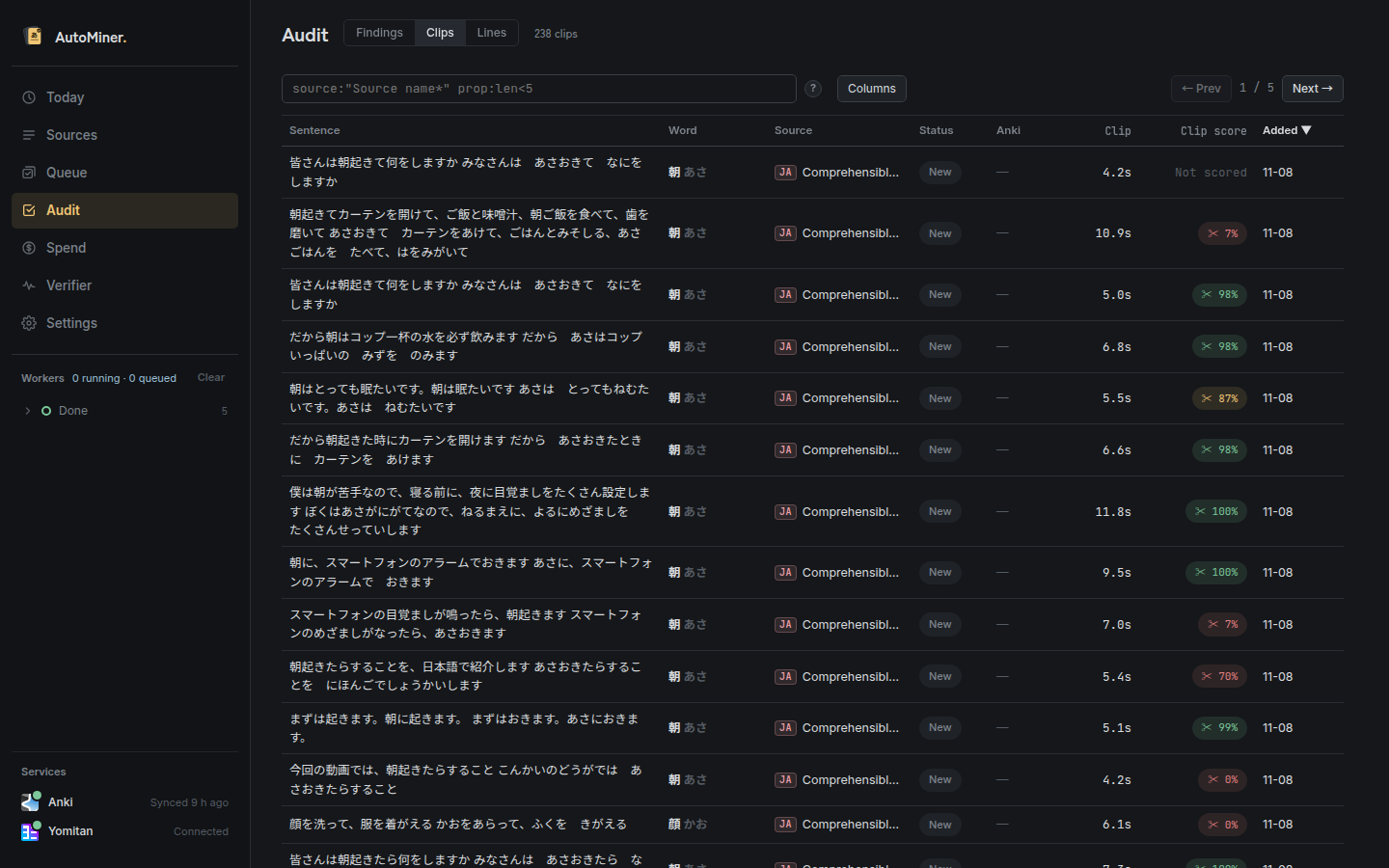
- Sources and Audit › Clips: the ✂ tag or Clip score column, for example
✂ 98%, or Not scored. - The editor: a chip beside the clip’s length, with a tooltip such as
Clip score: 97% chance it is cut right (send threshold 95%). It is green at or above the send threshold, gold from 80%, and red below 80%.
A clip is scored only when all of these hold:
- The source’s audio has been measured (the editor says
This video's audio is not measured yetuntil then). This needs the speech detector and the source’s audio on the server. - The line’s words have been measured by the transcription runner.
- The clip is one subtitle line. A card that spans several subtitle lines is never scored.
The score belongs to the exact cut it was made for. After a re-cut the clip is scored again.
Send threshold (Settings › Clips › Clip rules for Gold, default 95%, from 50 to 100%) is the lowest clip score auto-send accepts. The line under it gives the precision measured at that threshold. Advanced has a per-platform override (YouTube, Stremio, Spotify).
Clip score at or above “Send threshold” (default OFF) also applies the threshold when Gold is picked: a sentence below it, or not scored yet, does not become Gold, and the word’s next best sentence does. With it OFF, Gold is picked without the clip score, but auto-send still sends only clips at or above the threshold.
What holds a clip from auto-send
Section titled “What holds a clip from auto-send”Auto-send sends a Gold card only when its clip passes every rule. The Queue page lists the
held ones as 3 Gold cards can't be sent: <reason>. The clip-related reasons:
| Reason shown | What it means | What to do |
|---|---|---|
the clip score is below the threshold |
The clip scored under the send threshold | Fix the cut in the editor and save, or send it by hand |
waiting for the clip score |
Not scored yet | Wait; scoring follows the cut |
not scored for the current cut yet |
The clip was re-cut and its new score is pending | Wait |
scored by an older model |
AutoMiner was updated with a new scoring model | Update the source with ↻ on the Sources page |
the clip cannot be scored (its audio is not measured) |
The source’s audio was not measured | Check the speech detector is installed and the source’s audio is on the server |
the clip cannot be scored (no word positions) |
The line’s words were never measured | Set up a transcription runner |
the clip cannot be scored (it joins several subtitles) |
The clip spans more than one line | Send it by hand |
its line is a song lyric |
The subtitle marks the line as a lyric | Send it by hand if you want it |
the voice is quiet |
The clip is past the Quiet clips margin | Raise or turn off Quiet clips, or send by hand |
waiting for its loudness to be measured |
The clip’s loudness is not measured yet | Wait |
the voice is buried under music |
The clip is under the music level | Pick a more lenient level, or send by hand |
waiting for the music check |
The music check has not run yet | Wait |
waiting for the music check (no separation service) |
No separation service to measure with | Set up a separation service, or set Clips buried under music to Off |
the music check failed (the clip could not be separated) |
Separation failed after its retries | Check the separation service |
the send threshold setting is not valid |
The saved threshold is outside 50–100% | Save a valid Send threshold |
waiting for the clip to be re-cut |
The clip is out of date and will be cut again | Wait, or open the card |
A card you send yourself from the editor is sent whatever its clip score.
Screenshots
Section titled “Screenshots”The screenshot is the frame at the middle of the clip:
- Video on the server: grabbed from the video at full size.
- Video already deleted: before a video is deleted under the retention settings, AutoMiner keeps its audio track and one frame every 2 seconds (480 pixels tall). The screenshot is the kept frame nearest the middle of the clip.
- Podcast episodes: the show’s cover image, at most 800 pixels wide.
A screenshot is made once with the clip. Re-cutting a clip in the editor takes a new screenshot at the new middle when the video is still on the server; otherwise the old one stays. You cannot pick a different frame by hand. The editor shows No image when a card has none.
Fixing a clip in the editor
Section titled “Fixing a clip in the editor”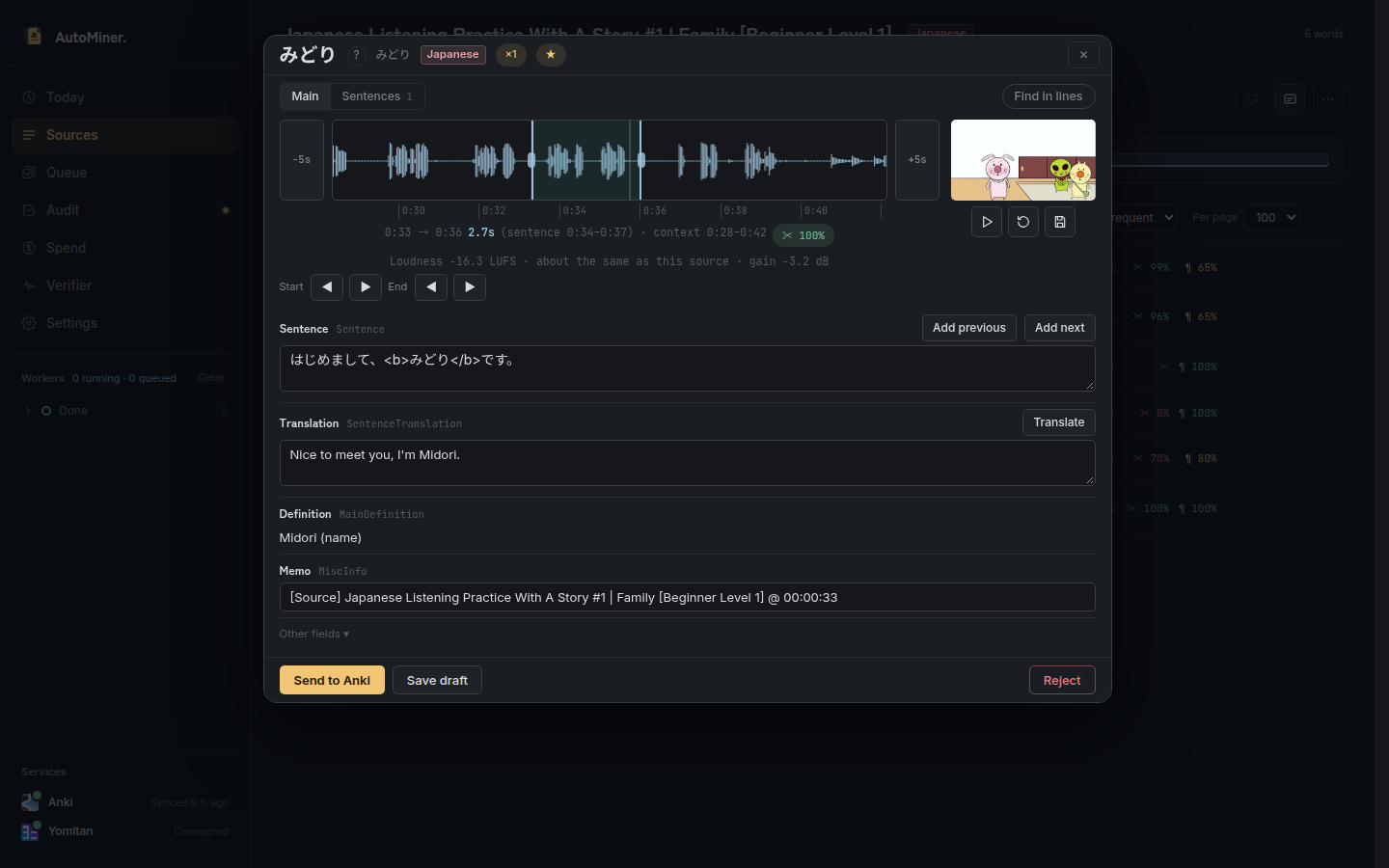
Open a card from Sources, the Queue or Audit. Under the card’s word:
- The waveform shows the sentence with a few seconds around it. The highlighted window is the clip. −5s and +5s show more of the audio around it; they do not change the clip.
- Play it with ▶ or
space. - Move an edge. Drag either edge of the window, or step it one frame (1/30 s) at a time
with Start ◀ ▶ and End ◀ ▶ (keys
,.for the start,<>for the end). Frame steps are cut a few seconds after the last press. - Re-cut. The save icon (Re-cut to this range) cuts the clip now. A dragged edge is
also cut when you Save draft or Send to Anki; closing the editor without saving puts
it back. The toast says
Clip updated: 2.70s, and the clip is scored again. - Start over. ↺ (Reset adjustments) drops your edges and cuts the clip with the automatic edges again.
Edges you set by hand are final: auto-trim and the final offsets never move them.
Without the video. If the source’s video and audio track are both gone, the editor says No local video · trim only: you can only shorten the clip inside its old span (to no less than 0.25 s). With no recorded span it says No local video · cannot re-cut.
A line’s clip for every card. In Audit › Lines, open a subtitle line and move its edges. The save icon there reads Save as the sentence’s clip: cards made on that line from now on start from this range. A card whose clip differs from its line’s shows Own range in the editor.
To leave out a line whose audio is unusable, use NG on the Queue and pick Audio unusable. More on the editor’s other controls: The pages.
Settings › Clips reference
Section titled “Settings › Clips reference”| Setting | Default | What it does |
|---|---|---|
| Gold cards › Lowest score for Gold | no condition | Candidates whose sentence score (%) is below this stay candidates and never become Gold. Advanced: per-platform overrides |
| Clip rules for Gold › Clip score at or above “Send threshold” | OFF | Also applies the send threshold when picking Gold |
| Clip rules for Gold › Send threshold | 95% | Lowest clip score auto-send accepts (50–100%). Advanced: per-platform overrides |
| Clip rules for Gold › Quiet clips | 10 dB | How much quieter than the source’s middle loudness a clip may be. Blank or 0 is off |
| Clip rules for Gold › Clips buried under music | Standard (75%) | Strict, Standard, Lenient, Off or Custom. Advanced: the exact percentage |
| Clip loudness › Level loudness | ON | Levels each source’s clips to the target |
| Clip loudness › Target loudness | Normal (−16 LUFS) | Quieter (−20), Normal (−16) or Louder (−13) |
| Advanced › Layer 1 · stop at the next subtitle | ON | Keeps neighbouring lines out using the subtitle times |
| Advanced › Layer 2 · move to silence | ON | Moves edges into nearby pauses |
| Advanced › Layer 3 · find by loudness change | ON | Finds the speech boundary when there is no pause |
| Advanced › Start offset | 0 s | −2 to 2 s, after auto-trim. Per-platform overrides |
| Advanced › End offset | 0 s | −2 to 2 s, after auto-trim. Per-platform overrides |
| Advanced › Padding | 0.3 s | 0 to 2 s outside the first and last word. Per-platform overrides |
Changing a Gold rule re-picks Gold for the cards it affects. Cards you approved and cards already being sent or sent do not change.