Languages
AutoMiner mines three languages: Japanese, Chinese (Mandarin) and Korean. You can study more than one at a time. Each source is filed under one language, and that language decides how its subtitles are checked, split into words, read and put on a card. Several other languages can be kept as fetch-only: AutoMiner records what you watched in them but makes no cards.
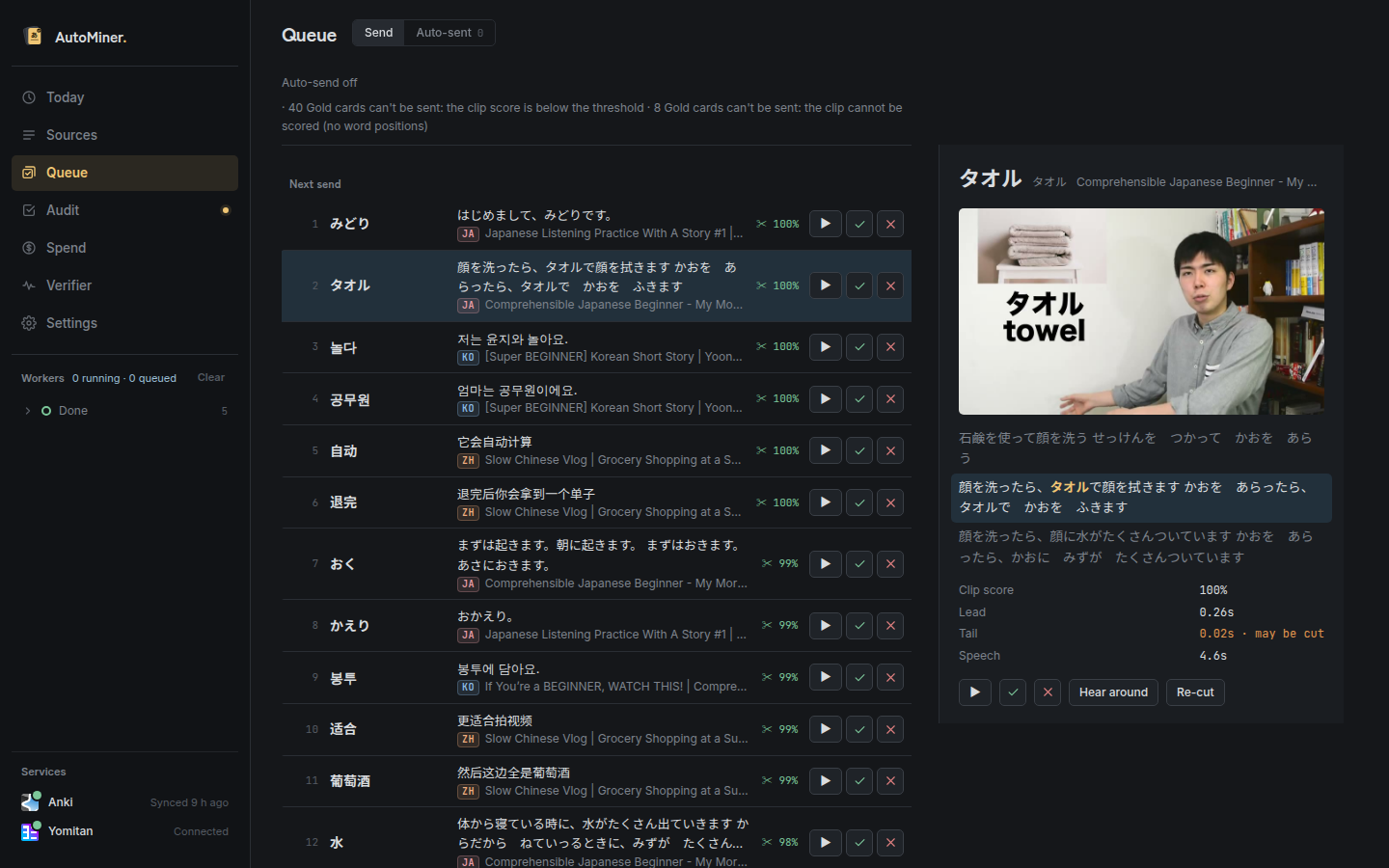
Terms used on this page:
- Source: one video, episode or track you watched or listened to.
- Fetch: getting a source’s details and subtitles (and, when needed, its video or audio).
- Mine: splitting a source’s lines into words and making a card for each unknown word.
- Studied languages: the languages you mine. The first one is the main language.
- Fetch-only language: a language AutoMiner can name but has no mining support for.
- Gold card: a card picked to send to Anki.
What each language gets
Section titled “What each language gets”| Japanese | Chinese | Korean | |
|---|---|---|---|
| Code | ja |
zh |
ko |
| Word splitter | fugashi with UniDic | jieba | Kiwi |
| Word key | Yomitan’s dictionary form (headword) | the word in Simplified characters | the word’s dictionary form from Kiwi (stem + 다 for verbs and adjectives) |
| Reading on the card | kana, from Yomitan | tone-marked pinyin | none |
| Sentence furigana | kana over kanji | pinyin over each word | none (the sentence as written) |
| Subtitle sources | all, including Jimaku and AnimeTosho | OpenSubtitles (asked for zh-cn,zh-tw), the platform’s own, embedded tracks |
OpenSubtitles (ko), the platform’s own, embedded tracks |
| Legacy subtitle encodings | Shift-JIS (CP932) | GB18030, Big5 | CP949 (EUC-KR) |
| Word audio if Yomitan has none | none | Lingua Libre recording | Lingua Libre or Wiktionary recording |
| Own options in Settings | yes (Japanese options) | yes (Chinese options) | no |
Every other step works the same for all three: syncing subtitles, cutting clips, scoring, the Queue and sending to Anki. In every language, when a line has several unknown words, AutoMiner prefers a common noun (not a name) as the card’s word.
Choose the languages you study
Section titled “Choose the languages you study”- Open Settings › Languages.
- Under Studied languages, tick each language you study (
Study <language>). The list shows the languages AutoMiner can mine; the others are under Fetch-only languages (click to open it). - Use ↑ and ↓ to order them. The top ticked language is the main language. Each row shows
its position number; unticked rows show
—. - Press Save changes at the bottom of the page (or Ctrl+S, ⌘S on a Mac).
At least one language must stay ticked (Pick at least one language to study). If nothing
was ever saved, AutoMiner studies Japanese.
Before it saves, AutoMiner asks when the change matters:
- Removing a language that already has sources:
Stop studying these languages?, with each language’s number of sources and Gold cards waiting. Press Stop and save to go ahead. Cards in a language you stop studying are not sent automatically and are left out of the Queue and Today counts. Nothing is deleted: tick it again to bring it all back. - Changing the main language:
Change the main language?Press Change and save. Sources whose language is unknown are filed under the new main language.
After saving, a message confirms the change, for example
Stopped studying <language>: <n> sources · <n> Gold cards not sent or counted.
The languages offered:
| Mined | Fetch-only |
|---|---|
Japanese ja, Korean ko, Chinese zh |
German de, English en, Spanish es, French fr, Italian it, Portuguese pt, Russian ru, Cantonese yue |
Set it on the server instead
Section titled “Set it on the server instead”The server setting AUTOMINER_LANG overrides this list. It takes codes or names, comma
separated, main language first, for example AUTOMINER_LANG=ja, zh. Parts it does not know are
ignored. While it is set, the Settings list shows
The server's setting wins — this field is the value once that setting is removed. See
Configuration for how server settings are set.
What else changes
Section titled “What else changes”- The main language is also the language the built-in Yomitan is set up for, and the one whose dictionaries it downloads. It reads this when AutoMiner starts, so restart AutoMiner after you change the main language. See Dictionaries and Yomitan.
- Adding a language that no source is filed under yet makes the next known-word read a full one, so every Anki note is sorted into its language again. Removing a language does the same once no source is filed under it.
- Settings › Languages › Per-language settings gets one tab per studied language, in the same order.
Fetch-only languages
Section titled “Fetch-only languages”A source in a fetch-only language is recorded and its subtitles are kept, but:
- it is never mined; its mining step ends as
<language> is not mined (fetch only); - AutoMiner does not download its video for mining and pays for no transcript;
- a podcast episode in it is not downloaded.
On Today, such a source shows <language> is not mined (fetch only). On Sources, a
source in a language you do not study has its language tag dimmed and struck through, with
the tooltip Not studied — this source's cards aren't sent.
Tick a language under Fetch-only languages when you watch things in it. Its sources are then filed under that language instead of your main language, and still not mined. A ticked fetch-only language counts as a studied language for detection: with two or more ticked, AutoMiner may listen to a source to tell its language (see below). To mine a source that was filed under the wrong language, change its language.
Cantonese (yue) is fetch-only. A Chinese source whose lines are written Cantonese (one line in
ten uses words like 嘅 咗 喺 唔 冇 佢 哋 啲 嚟 乜) is refiled as Cantonese, unless you set its
language yourself. A downloaded Stremio file or podcast episode tagged only as generic Chinese,
with Traditional subtitles or none, may be checked by ear for Cantonese (a paid 30-second
recognition, see below).
How a source’s language is decided
Section titled “How a source’s language is decided”When AutoMiner fetches a source, it decides the language once:
- Your choice wins. If you set the source’s language, that is kept, and nothing else is asked.
- What the platform says. YouTube’s audio language, a podcast feed’s
<language>, a Spotify episode’s languages, or a video file’s audio track tags. The first studied language named is used. - The titles’ script. With no tag at all, a studied language whose script appears in the titles: kana for Japanese, Hangul for Korean, Han characters that Japanese never uses (们, 这) for Chinese. Han characters both languages use tell nothing.
- Listening. With two or more studied languages (ticked fetch-only ones count) and nothing above telling, AutoMiner sends 30 seconds from the middle of the audio to a cloud recognizer (ElevenLabs Scribe or OpenAI, whichever key you have in Settings › Services › API keys). If it hears a studied language, or one from the fetch-only list, the source is filed under it. This is a paid call, counted in your spend (see Paid services and budgets). The answer is kept for that file. With one studied language, or no key, it never listens.
- Otherwise the main language.
When the platform names a language you do not study:
| Platform | What happens |
|---|---|
| YouTube | Mined in the main language, unless you turn on Mine only videos in a studied language in YouTube’s section of Settings › Sources (default OFF; see Adding YouTube). Then the fetch stops with Not in a language you study (<language>). |
| Podcasts | Not fetched: Not a show in a studied language, so not fetched (<language>). If you start it yourself, AutoMiner uses the titles instead. |
| Stremio | AutoMiner reads the downloaded file’s audio track tags. A language from the fetch-only list is stored as that language, fetch-only. Any other language: the main language. |
When you start a source yourself on Today (press its row) and you study two or more
languages, AutoMiner asks Which language should it be mined in?. The detected language is
marked (detected), and a fetch-only language is marked (fetch only). If it could not tell,
the dialog says Couldn't tell this video's language.; if it was marked as a language you do
not study, it says so.
Change a source’s language
Section titled “Change a source’s language”Do this when a source was filed under the wrong language.
- Open Sources and open the source.
- Pick the language from the menu in the source’s header (
This source's language). The same menu sits next to Update subtitles on the Sync subtitles screen (the subtitles icon, shown when AutoMiner can cut clips from the source). - AutoMiner asks
Change the language to <language>?and says what happens to the cards:<n> untouched cards of the earlier language go to the trash (restore them in Audit › Clips).- for a fetch-only language:
<language> isn't mined, so <n> untouched cards go to the trash (restore them in Audit › Clips). <n> cards an earlier language change trashed come back.
- Press Change.
“Untouched” means mined cards nobody edited, decided or sent. Cards you made by hand, edited,
accepted, rejected or sent stay. While the change runs, the header shows
Changing to <language>….
What happens next:
- The source’s language is stored as yours, and no later fetch changes it.
- AutoMiner fetches the source again in the new language and mines it. If it kept the lines from an earlier time in that language (for example you are switching back), it puts them back.
- Queued fetches, transcriptions and mining in the old language are called off.
If it shows The language change didn't finish, press Retry.
On Today, pressing a fetch-only source’s row and picking a studied language changes its language the same way.
Per-language settings
Section titled “Per-language settings”Settings › Languages › Per-language settings has one tab per studied language. Everything below the tabs applies to the open tab’s language.
| Setting | What it does |
|---|---|
| Default destination: Deck, Note type | Where new notes go. Default Backlog and Kiku. Shown only when you study two or more languages. |
<language> deck, <language> note type |
This language’s deck and note type. Blank uses the default destination. Notes already sent are not moved. Add the deck to the duplicate search range too. |
| Card fields (Yomitan’s card format) | Send › Fields opens the field mapping. The note type picks which Yomitan card format fills the fields. |
| Yomitan dictionaries (Built-in) | The built-in Yomitan’s dictionaries. Shown on the main language’s tab only, when the built-in Yomitan is running. |
| Local dictionaries | Dictionaries AutoMiner keeps for this language, and their order against Yomitan. |
| Known-word cache | <language>: <n> known words, with Update known words and Read all again. |
| Rejected words | <language>: <n> rejected cards. A rejected card’s word is never mined again in that language. |
The note type field warns when the note type is missing a field AutoMiner writes. For Korean, the
reading fields (ExpressionReading, ExpressionFurigana, SentenceFurigana) are not
required, because Korean cards have no reading.
Dictionaries are covered in Dictionaries and Yomitan; decks, note types and known words in Anki: setup, fields and sending.
Known words per language
Section titled “Known words per language”Known words come from your whole Anki collection, in any deck. AutoMiner decides each note’s language from its own word, reading and sentence fields, not from its deck or note type:
- kana means Japanese, Hangul means Korean, and a Han character Japanese never writes (这, 们) means Chinese;
- Han characters both Japanese and Chinese use (学生, 時間), with nothing else to tell, count in every studied language that could have written them, so nothing becomes unknown by mistake;
- a note none of your studied languages could have written counts in none.
A Japanese note 学生 with the reading がくせい is Japanese, so 学生 stays unknown for Chinese.
Japanese options
Section titled “Japanese options”On the Japanese tab, under Japanese options:
| Setting | Default | What it does |
|---|---|---|
| Jimaku API key | blank | Lets AutoMiner search Jimaku for Japanese subtitles. |
| Merge Kiku-style | ON | The editor shows Merge, which adds the sentence, audio and picture to an existing note as one more page. Turn it OFF if you don’t use Kiku. |
| Skip katakana-only | OFF | Skips katakana-only words such as タイム, ベッド, ドキドキ. |
| Skip counters | OFF | A counter right after a number (3ヶ月, 三年前) is never the target; the card moves to another unknown word. |
| Restore katakana fragments | OFF | When katakana continues on either side of a katakana target, the target becomes the whole run (デウス → ルーデウス). Not joined across ・. |
| Known-word CSV (under Advanced, below the known-word cache) | none | Words you exclude by hand, header Morph-Lemma, one word per row. |
The filters apply from the next mining; existing cards stay as they are.
Chinese options
Section titled “Chinese options”On the Chinese tab, under Chinese options:
| Setting | Default | What it does |
|---|---|---|
| Chinese script | Simplified | When a video has subtitles in both Simplified and Traditional characters, which to mine. Applies from the next fetch. For a source already fetched, press Update subtitles on its Sync subtitles screen. |
Japanese
Section titled “Japanese”- Words. fugashi with the UniDic dictionary splits each line. Nouns, verbs, adjectives, na-adjectives and adverbs can be targets. Yomitan turns each word into its dictionary form, which is the word’s key. One-character verbs, adjectives and adverbs are never targets.
- Readings. The card’s reading is the reading of Yomitan’s entry, in hiragana (left as it is for a word with katakana in it). AutoMiner writes the sentence furigana itself from UniDic, with a few everyday readings fixed (日本 as にほん, 私 as わたし, 明日 as あした).
- Subtitles. A subtitle track counts as Japanese when at least a fifth of its first 200 lines contain kana.
- Line joins. A line ending in 、 joins the next. AutoMiner can also ask the judge (the service that answers yes/no questions about text) whether two lines form one sentence; it asks only for Japanese.
Chinese
Section titled “Chinese”- Words. jieba splits each line on a Simplified copy, and each word is cut back out as written, so 圖書館 stays one Traditional word. Nouns, idioms, verbs, adjectives and adverbs can be targets; pronouns, particles, numerals, measure words, prepositions and conjunctions cannot. A one-character verb, adjective or adverb (是, 去, 好) is never a target; a one-character noun (书, 猫) can be.
- Better splitting with a dictionary. With a local Chinese dictionary (CC-CEDICT) imported, a chunk jieba keeps whole but the dictionary lacks is split into dictionary words (坐地铁 → 坐 + 地铁). Import one on the Chinese tab; see Local dictionaries.
- Simplified and Traditional. 學習 and 学习 are one word, keyed 学习. Knowing it in one spelling means knowing it in the other. Each card keeps the word as its line writes it.
- Readings. Tone-marked pinyin from pypinyin is the card’s reading, and the sentence
furigana puts pinyin over each word (
学习[xué xí]). - Subtitles. A track counts as Chinese when at least a quarter of it is CJK characters and under 5% is kana. When you use subtitle line filters (Subtitles), Chinese sources also drop lines written only in Latin letters, pinyin-only lines and subtitle credit lines (翻译:…), and keep 《…》 book-title marks.
- Line joins. A line ending in , or 、 joins the next.
- Yomitan. Yomitan is never asked for a Chinese word’s dictionary form. It still supplies definitions and frequency when it has a Chinese dictionary. Dictionary entries whose reading is not pinyin or zhuyin are ignored, so a Japanese dictionary never defines a Chinese word.
Korean
Section titled “Korean”- Words. Kiwi splits each line. A word is a content word together with the endings attached to it: the card shows it as said (먹었어요) and keys it by its dictionary form (먹다). Nouns, verbs and adjectives (stem + 다), noun + 하다 verbs (공부해요 → 공부하다) and adverbs of two syllables or more can be targets. Particles, endings, the copula, pronouns, numerals, dependent nouns (것, 수), auxiliary verbs, determiners, interjections and one-syllable adverbs (안, 못, 잘) cannot.
- Better compounds with a dictionary. With a local Korean dictionary imported, adjacent nouns that form a dictionary word are one word.
- Readings. None. Hangul is written as it sounds, so the reading fields stay empty and
SentenceFuriganais the sentence as written. - Card sentence. The word is bolded where it is said (먹다 bolds 먹었어요).
- Subtitles. A track counts as Korean when Hangul is at least half its letters. When you use subtitle line filters, Korean sources also drop lines written only in Latin letters, and keep 《…》 marks.
- Yomitan. As for Chinese, Yomitan is never asked for the dictionary form, and an entry whose reading is in kana or Han characters is ignored.
Adding a language
Section titled “Adding a language”AutoMiner can only mine a language that has a language profile in its code: today Japanese, Chinese and Korean. A profile is a small module that tells AutoMiner how to recognise the language’s script, split its lines into words, read them and judge its subtitle tracks. Adding one is a code change; the developer guide is Language profiles.
Until a profile exists:
- If the language is in the fetch-only list above, tick it under Fetch-only languages so its sources are recorded and filed correctly.
- A language that is in neither list cannot be selected.
Troubleshooting
Section titled “Troubleshooting”A source was mined in the wrong language
Section titled “A source was mined in the wrong language”Change its language. The wrong cards go to the trash and the source is mined again. To stop it happening for YouTube, turn on Mine only videos in a studied language. With two or more studied languages, adding an ElevenLabs or OpenAI key lets AutoMiner listen when nothing else tells.
A source says <language> is not mined (fetch only)
Section titled “A source says <language> is not mined (fetch only)”Either the language is not one AutoMiner mines, or the source was filed under the wrong language. If it is really Japanese, Chinese or Korean, change its language.
Couldn't tell its language (pick one you study)
Section titled “Couldn't tell its language (pick one you study)”You study two or more languages and AutoMiner could not tell this source’s language. Press the source’s row on Today and pick one.
Words I know show up as unknown in a new language
Section titled “Words I know show up as unknown in a new language”The known-word cache is per language. After adding a language, press Read all again on its tab, so every note is sorted into its language again. Notes whose words are only Han characters count for every language that could have written them.
The built-in Yomitan has dictionaries for the wrong language
Section titled “The built-in Yomitan has dictionaries for the wrong language”It follows the main language at the time AutoMiner started. Change the main language, save, and restart AutoMiner. Then press Download recommended dictionaries to get the new language’s set. Dictionaries already imported stay until you delete them. Use local dictionaries for your other languages.