Paid services and budgets
AutoMiner works without any paid service. A few optional jobs can call paid APIs: transcription, translation, and the hosted judge. This page covers what each one is used for, how AutoMiner estimates and records what it costs, the Spend page, the spending limits in Settings › Budget, and how to run AutoMiner with no paid services at all.
Every dollar figure in AutoMiner is an estimate from a price list built into AutoMiner. It is never your provider’s invoice. Check the provider’s own dashboard for what you were actually billed.
What can cost money
Section titled “What can cost money”| Service | Key (Settings › Services › API keys) | What AutoMiner uses it for | Shown on Spend as |
|---|---|---|---|
| OpenAI | OpenAI (OPENAI_API_KEY) |
Subtitle transcription (Provider OpenAI (Whisper)), the transcription runner Cloud — OpenAI, translation (Provider OpenAI), and detecting a source’s language by ear | Transcription, Check, Translation |
| ElevenLabs | ElevenLabs (ELEVENLABS_API_KEY) |
Subtitle transcription (Provider ElevenLabs (Scribe)), the transcription runner Cloud — ElevenLabs Scribe, and detecting a source’s language by ear | Transcription, Check |
| Google Gemini | Gemini (GEMINI_API_KEY, a Google AI Studio key) |
Translation only (Provider Gemini) | Translation |
| Jev | Judge service (Jev) (TYPESAFE_API_KEY) |
The hosted judge (see below) | Not recorded |
The judge is the service that answers AutoMiner’s yes/no and pick-one questions: is this subtitle timed to the audio, should these two lines join, is this a good sentence, was this line really spoken. The local judge answers them on your own machine, for free. Jev is an optional hosted judge: once its key is set, Jev answers until you pick This machine under Settings › Services › Judge service (see The judge). AutoMiner does not estimate or record what Jev calls cost: they never appear on Spend, and the spending limits do not stop them. Without a Jev key, every judge task runs on the local judge.
Other keys in Settings › Services (OpenSubtitles, Prowlarr, Deluge, Stremio, and Jimaku under Settings › Languages) have no cost tracking in AutoMiner.
When each paid call happens
Section titled “When each paid call happens”- Subtitle transcription (Settings › Subtitles › Subtitle transcription › Provider, default OpenAI (Whisper)). Runs for a source that has no usable subtitles: a video without subtitles, a podcast episode, or a YouTube video that has only auto-generated captions. For a YouTube video with only auto-generated captions, AutoMiner transcribes it when the provider has a key and the whole video’s estimate, on its own, fits under every spending limit (less the safety margin); otherwise, or if the transcription fails, it mines the auto captions as they are. No transcription turns this off: such sources are skipped.
- The transcription runner (Settings › Subtitles › Subtitle check › Transcription runner, default Container — transcription service). This transcription is used for the subtitle check (Check mode ON) and to measure where each line’s words are spoken, which happens whenever clips are cut, even with Check mode OFF. Only the two Cloud choices cost money. Container — transcription service and This machine — Whisper are free.
- Language detection by ear. Only when you study more than one language and a source does not say which language it is in, or to tell Cantonese from Mandarin in a Chinese source that is tagged only as generic Chinese (see Languages). AutoMiner sends a 30-second sample from the middle of the audio to ElevenLabs if that key is set, else to OpenAI. It is recorded under Check.
- Translation. See Translation below.
How a cost is estimated and recorded
Section titled “How a cost is estimated and recorded”Before each paid call, AutoMiner estimates its cost and checks it against your spending limits (Settings › Budget, below). After the call, it records the cost in its database.
- Transcription is priced per minute of audio. The estimate uses the length of the audio about to be sent. The recorded cost uses the minutes of audio actually transcribed.
- Translation is priced per million tokens, input and output. The estimate is a rough figure from the sentence’s length. The recorded cost uses the token counts the provider reports back.
The built-in price list:
| Model | Used for | Price |
|---|---|---|
whisper-1 (OpenAI default) |
transcription | $0.006 per minute ($0.36 per hour) |
gpt-4o-transcribe |
transcription | $0.006 per minute |
gpt-4o-mini-transcribe |
transcription | $0.003 per minute |
scribe_v1 (ElevenLabs default) |
transcription | $0.40 per hour |
gpt-4.1-nano (OpenAI translation default) |
translation | $0.10 in / $0.40 out per million tokens |
gpt-4.1-mini |
translation | $0.40 / $1.60 |
gpt-4o-mini |
translation | $0.15 / $0.60 |
gpt-5-nano, gpt-5.4-nano |
translation | $0.05 / $0.40 |
gemini-3.5-flash-lite (Gemini translation default) |
translation | $0.30 / $2.50 |
gemini-2.5-flash |
translation | $0.30 / $2.50 |
gemini-2.5-flash-lite |
translation | $0.10 / $0.40 |
gemini-2.5-pro |
translation | $1.25 / $10.00 |
A model name that is not in this list is priced as whisper-1 (transcription) or
gpt-4.1-nano (translation). If you set a dearer model by hand, Spend under-reports it and the
limits stop it later than they should.
As a guide: transcribing a whole 24-minute episode costs about $0.14 with whisper-1 and about
$0.16 with scribe_v1.
Settings › Subtitles also has a Transcription use (30 days) table: minutes sent to transcription in the last 30 days and their estimated cost, per model and use. “Check · measure” is the subtitle check, word measuring and language detection; “Subtitle generation” is transcription of sources without subtitles.
Cost presets (Settings › Overview)
Section titled “Cost presets (Settings › Overview)”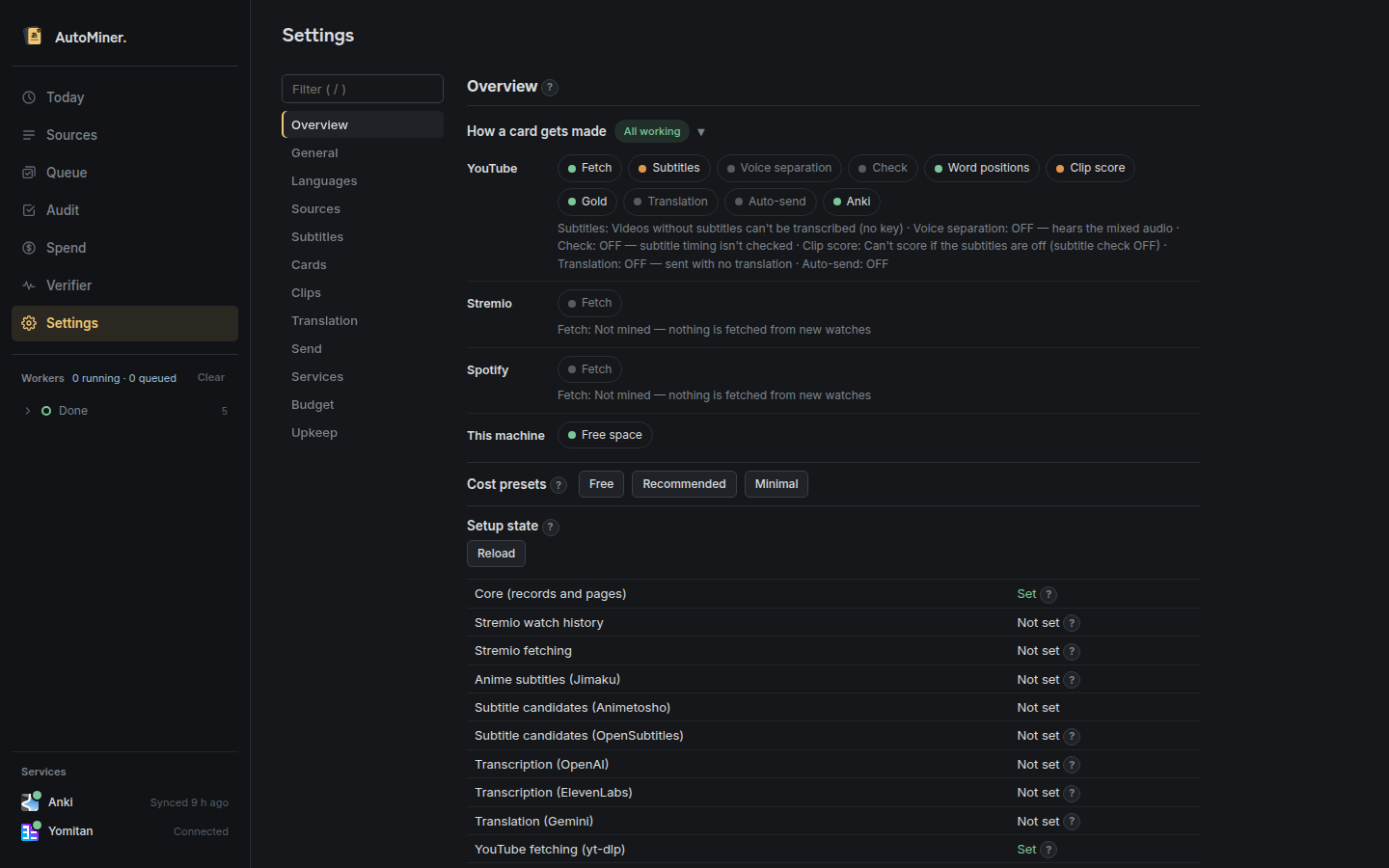
The three buttons under Cost presets fill in the transcription, subtitle check and
translation settings at once. Nothing changes until you press Save changes. The status line
says "<name>" filled in · press Save to apply, or Already the "<name>" setup. Per-source
overrides (the YouTube / Stremio tabs) stay as they are.
| Setting | Free | Recommended | Minimal |
|---|---|---|---|
| Subtitles › Check mode | OFF | ON | OFF |
| Subtitles › Transcription runner | Container — transcription service | Cloud — ElevenLabs Scribe | Cloud — OpenAI |
| Subtitles › Subtitle transcription › Provider | No transcription | ElevenLabs (Scribe) | OpenAI (Whisper) |
| Translation › Auto-translate | OFF | ON | OFF |
| Translation › Provider | unchanged | Gemini | unchanged |
Free costs nothing, but the Container runner only works once you run the transcription service and enter its URL (see Self-hosting). Recommended needs an ElevenLabs key and a Gemini key. Its tooltip says the subtitle check needs a Jev key; it does not: without one, the local judge runs the check once it is downloaded (The judge). Minimal needs an OpenAI key.
The Spend page
Section titled “The Spend page”Open Spend in the left rail. It shows what paid work cost, refreshes every minute, and changes nothing: each Settings → link opens the matching setting.
Period. The chips at the top pick This month (the 1st to today), 30 days (the last
30 days, today included) or 12 months (this month and the 11 before it). The heading shows
the range, for example 2026/11 · days 1–24.
Summary.
| Figure | What it is |
|---|---|
| Spend · This month (or 30 days, 12 months) | Total estimated spend in the period |
| Today | Spend so far today, in your time zone |
| Yesterday | Spend yesterday |
| Month-end estimate | Only for This month: “about” the month’s total if spending goes on at this month’s pace so far |
Amounts are in dollars with two decimals; anything under half a cent shows as <$0.01.
Translation is failing. A red line such as
Translation is failing · OpenAI gpt-4.1-nano (401) · <time> appears for ten minutes after the
translation provider refuses a request outright (a bad key, no access to the model, a rate
limit, a server error) or cannot be reached. It goes away once a translation succeeds, or when
you change the provider, the model or the key.
Daily spend (Monthly spend for 12 months). One bar per day (per month), stacked by purpose:
- Check: transcription for the subtitle check, word measuring and language detection.
- Transcription: transcription of sources without subtitles.
- Translation: sentence translation.
Day numbers show under the 1st, every fifth day and today (today’s in gold). Click a bar, or move to it with the arrow keys and press Enter, to see its date and total under the chart. With nothing spent the chart says No spend in this period.
By purpose. One tile each for Check, Transcription and Translation: the total, a bar for its
share of the period, and the amount used (12.4 min · 31 calls, 85 sentences · 85 calls), or
Not used.
By source. The ten sources that cost the most in the period, dearest first. Spend on a source you have since deleted is one row, Deleted source.
By service. One row per model, dearest first: the provider (OpenAI, ElevenLabs or Gemini), the purpose and amount, and the dollars. Hover the provider’s name for the model. With nothing spent it says No paid work in this period.
Limits. One tile per limit:
| Tile | Shows |
|---|---|
| Daily limit | The limit (or No limit), a bar, and Today $used / $limit |
| Monthly limit | The limit, a bar, and This month $used / $limit |
| Per-source limit (month) | The limit, and This month: no source at the limit, or how many sources reached it with each one’s title and spend. Its bar fills only once a source has reached it |
| Safety margin | The margin in dollars |
A bar turns orange at 80% and red when that limit has stopped paid work. While any limit has
stopped paid work, the panel starts with
Budget limit reached: paid work is stopped (N waiting for budget), and the Spend entry in
the rail carries a red dot on every page.
The Today page’s Spend card shows the same day’s figure with This month $x and a
link to Spend.
Spending limits (Settings › Budget)
Section titled “Spending limits (Settings › Budget)”| Setting | Default | What it does |
|---|---|---|
| Daily limit | blank (no limit) | Most that paid work may spend per day, in USD |
| Monthly limit | blank (no limit) | Most that paid work may spend per calendar month |
| Per-source limit (month) | blank (no limit) | Most that one source may spend per calendar month. Only that source’s paid work stops; other sources go on |
| Safety margin | blank = $0.50 | An amount kept back in case the estimates are off |
For each limit, blank means no limit and 0 means nothing paid at all. Amounts can be from $0
to $100,000, in cents. A new value applies from the next paid call after you save.
How the check works. Before a paid call, AutoMiner adds the call’s estimate to what was already spent in the period. If that would leave less than the safety margin under any limit, the call is not made. So the most you can spend is roughly the limit minus the margin. With a Daily limit of $1.00 and the default margin, paid work stops once about $0.50 has been spent that day.
Rules when saving. A limit other than 0 must be at least $0.01 above the safety margin, and
the margin at least $0.01 below every limit other than 0. Otherwise Settings refuses the value
with Make the limit at least 0.01 above the safety margin ($0.50). As it is, no paid work would ever run (or the same message about the margin).
Days and months are counted in Settings › General › Time zone. When that is blank, AutoMiner uses the time zone of the browser it last saw, and UTC until a browser has opened a page.
When a limit is reached
Section titled “When a limit is reached”Paid work stops; free work carries on. What you see:
- Transcription, the subtitle check and word measuring. The job waits in the queue as
Waiting for budget. The Workers list in the rail shows the reason, for example
Daily spending limit $0.51 / $1.00orThis source's monthly limit $0.30 / $0.50. - Sources page. A source whose update is held shows Waiting for budget with an Open Spend button.
- Automatic translation stops for the run, and the run waits as Waiting for budget. With the per-source limit, only that source’s sentences are skipped and the others are translated.
- Translation when a card is sent. The card is sent without a translation.
- The editor’s Translate button shows the limit’s message and translates nothing.
- YouTube videos with only auto-generated captions whose whole transcription is more than a limit allows even with nothing spent are mined from the auto captions instead. Otherwise the transcription waits for budget like any other.
Resuming. Held work starts again by itself when the day or month turns, or when you raise or clear the limit. AutoMiner checks the held jobs whenever its workers are idle. What was spent stays on record.
Work that never stops for a limit: the local judge, Jev, the Container and This machine transcription runners, separation, clip cutting and everything else that makes no paid call.
Running with no paid services
Section titled “Running with no paid services”- In Settings › Overview, press Free, then Save changes. This turns off the subtitle check, transcription of sources without subtitles and automatic translation, and sets the transcription runner to the Container.
- Give the runner something to run on, or clips are cut on the subtitle times alone:
- Container — transcription service: run the transcription service on this or another machine and enter its address in Settings › Services › Transcription service URL (Self-hosting).
- This machine — Whisper: pick it under Settings › Subtitles › Subtitle check ›
Transcription runner. It needs the
whisperextra (Settings shows the install command while it is missing) and downloads a model of about 1.6 GB the first time it is used.
- Leave the OpenAI, ElevenLabs, Gemini and Judge service (Jev) keys empty in Settings › Services. Without a Jev key the local judge answers every judge task; download it once under Settings › Services › Judge service (The judge).
- Optional hard stop: set Settings › Budget › Daily limit to
0. No transcription or translation call is made even if a key is added later. Jev calls are not covered.
What you give up:
| Without | You lose |
|---|---|
| Subtitle transcription | Sources with no subtitles (videos without subtitles, podcast episodes) are skipped. YouTube videos with only auto-generated captions are mined from those captions |
| Translation | The card’s translation field stays empty unless you type one |
| Language detection by ear | With several studied languages, a source that does not name its language gets the main language |
| Jev | Nothing functional: the local judge answers instead, on your CPU or GPU |
| A transcription runner of any kind | No word positions, so clips are cut on the subtitle times, the clip score cannot be computed, and auto-send never sends (see Clips). Check mode cannot run |
Entering keys
Section titled “Entering keys”In the web UI. Open Settings › Services. Under API keys, each row names what uses the key. Type the key and press Save changes. A saved key is never shown again: the box says Set with the key’s last characters, or Not set. Saving an empty box leaves the key as it is; the Delete button beside the box removes the key after asking. Keys take effect as soon as they are saved, with no restart. They are stored one file each in the server’s secrets directory, never in the database.
From the command line on the server:
autominer secret set OPENAI_API_KEY # prompts for the value; it is never on the command lineautominer secret set ELEVENLABS_API_KEYautominer secret set GEMINI_API_KEYautominer secret set TYPESAFE_API_KEY # Jevautominer secret list # every secret: set or unset, and where it comes fromautominer secret unset GEMINI_API_KEYsecret set also reads one line from standard input when it is not run in a terminal. If a key
is also set in the server’s environment or installation .env, that value wins; Settings then
shows the server's setting wins beside the key. See Configuration for the
secrets directory and precedence.
Translation
Section titled “Translation”Translation fills the card’s translation field with an English translation of the sentence. It is optional and paid.
| Setting (Settings › Translation) | Default | What it does |
|---|---|---|
| Auto-translate | OFF | ON: after mining, the sentences of Gold cards without a translation are translated, and a card that still has none is translated when it is sent |
| Provider | OpenAI | OpenAI or Gemini. Each uses its own key from Settings › Services |
| Advanced › Override “Auto-translate” | Use the shared setting | Per platform: YouTube only, Stremio only, Spotify only (ON / OFF) |
| Advanced › OpenAI model | gpt-4.1-nano |
Model for the OpenAI provider |
| Advanced › Gemini model | gemini-3.5-flash-lite |
Model for the Gemini provider |
| Advanced › Sentences per run | 200 | How many untranslated sentences one run handles; the rest wait for the next run |
| Advanced › Cost per run | $0.50 | A run stops once its estimated cost reaches this; translations saved so far stay |
Gold is the sentence AutoMiner picks as each word’s card to send. Only Gold cards are
translated automatically; identical sentences are translated once. With Auto-translate OFF,
nothing is translated by itself, but the editor’s Translate button (key t) translates the
sentence in hand at any time. Every translation, automatic or by hand, counts toward the
spending limits.
When it fails. A sentence the provider cannot translate is left empty and not retried. A refusal of every request (bad key, no access to the model, rate limit, server error) pauses translation at send time for ten minutes and shows on Spend as Translation is failing. Cards sent in that time go without a translation.