Adding YouTube
AutoMiner can mine the YouTube videos you watch. YouTube is a platform: a place sources come from. A source is one video you watched. This page covers installing YouTube on the server, how your watches reach it, how a video is fetched, the YouTube settings, subtitles, languages, costs and what to do when a video does not get mined.
How it works
Section titled “How it works”-
You watch. A device reports the watch to your server:
- in Chrome on a computer, the AutoMiner Capture extension;
- in the YouTube app on Android, the AutoMiner patch applied with Morphe; see YouTube on an Android phone.
Both report the video, the device and where you are in the video while it plays. The watch shows on Today.
-
The watch ends. When the extension or phone reports the end of the viewing (the video ended, you moved on, or it stayed paused for a while), the server queues a fetch for the video, unless it is already mined or YouTube is set to Don’t mine.
-
AutoMiner fetches the video on the server with yt-dlp: its details, its subtitles and a small copy of the video for clips and screenshots.
-
It mines the subtitles and makes cards, like any other source.
Nothing is fetched in your browser or on your phone. The server asks YouTube itself, without your YouTube account.
Install YouTube on the server
Section titled “Install YouTube on the server”A fresh AutoMiner has no platforms installed. Until YouTube is installed, the server drops YouTube watches: the extension still shows them as delivered, but nothing is recorded.
- Open Settings › Sources.
- In the Platforms card, click Add. The Add a platform dialog lists every platform.
- Click + next to YouTube (Install YouTube).
AutoMiner downloads two programs for the server’s operating system into
$AUTOMINER_HOME/programs/youtube (on Windows, under %LOCALAPPDATA%\AutoMiner\data), and
checks each against a pinned SHA-256:
- yt-dlp, the program that talks to YouTube;
- the PO-token provider (
bgutil-potfrom bgutil-ytdlp-pot-provider-rs, with its yt-dlp plugin). YouTube asks for proof-of-origin (PO) tokens before it serves some requests. yt-dlp starts this program only when it needs a token; nothing keeps running.
Together they are 70 to 95 MB, so the install can take a minute. When it is done, a YouTube section appears under Platforms.
If the install fails, the reason shows under the Platforms card:
| Message | Meaning |
|---|---|
<file>: download failed: … |
The server could not download from GitHub. Check its internet connection and try again. |
yt-dlp: nothing is pinned for <system>/<machine> |
No yt-dlp build is pinned for this kind of machine (for example a 32-bit ARM board). |
yt-dlp does not run on this machine (…) |
The downloaded yt-dlp failed its test run on this machine. |
… SHA-256 mismatch … |
The download did not match the pinned file and was thrown away. Try again. |
The PO-token provider is pinned for Windows x64, Linux x86_64 and arm64, and macOS. On other machines (Windows on ARM, for one), or where it does not run, YouTube is installed without it and fetches work without PO tokens.
Keeping yt-dlp current
Section titled “Keeping yt-dlp current”YouTube changes often, and an old yt-dlp stops working. About once a day, AutoMiner checks
yt-dlp’s latest release on GitHub. When that release’s checksum list gives a different
SHA-256 for this machine’s file than the copy it has, AutoMiner downloads the new file,
checks it against that checksum and replaces its copy. The server log then says
[youtube] yt-dlp updated to <version>. The same check puts back any of the YouTube
programs that went missing.
Uninstalling
Section titled “Uninstalling”Click Add again, then the trash icon next to YouTube. AutoMiner asks “Uninstall YouTube?”: it stops recording YouTube watches and fetching, cancels YouTube fetches in progress, and deletes the downloaded programs and the downloaded videos. Settings, sources, clips and cards stay.
What the server needs
Section titled “What the server needs”| Need | Why | Where |
|---|---|---|
| YouTube installed | Records watches and runs fetches | Settings › Sources › Platforms, above |
Node.js on the server’s PATH |
yt-dlp solves YouTube’s JavaScript challenges with it. Without it, more videos fail. | install.sh installs it; the Windows installer ships its own |
| ffmpeg and ffprobe | Merge and check the downloaded video, cut clips | Installed with AutoMiner |
| A VPN proxy (optional) | A second way out when YouTube refuses the server’s own address | Settings › Services, see YouTube refusing the server |
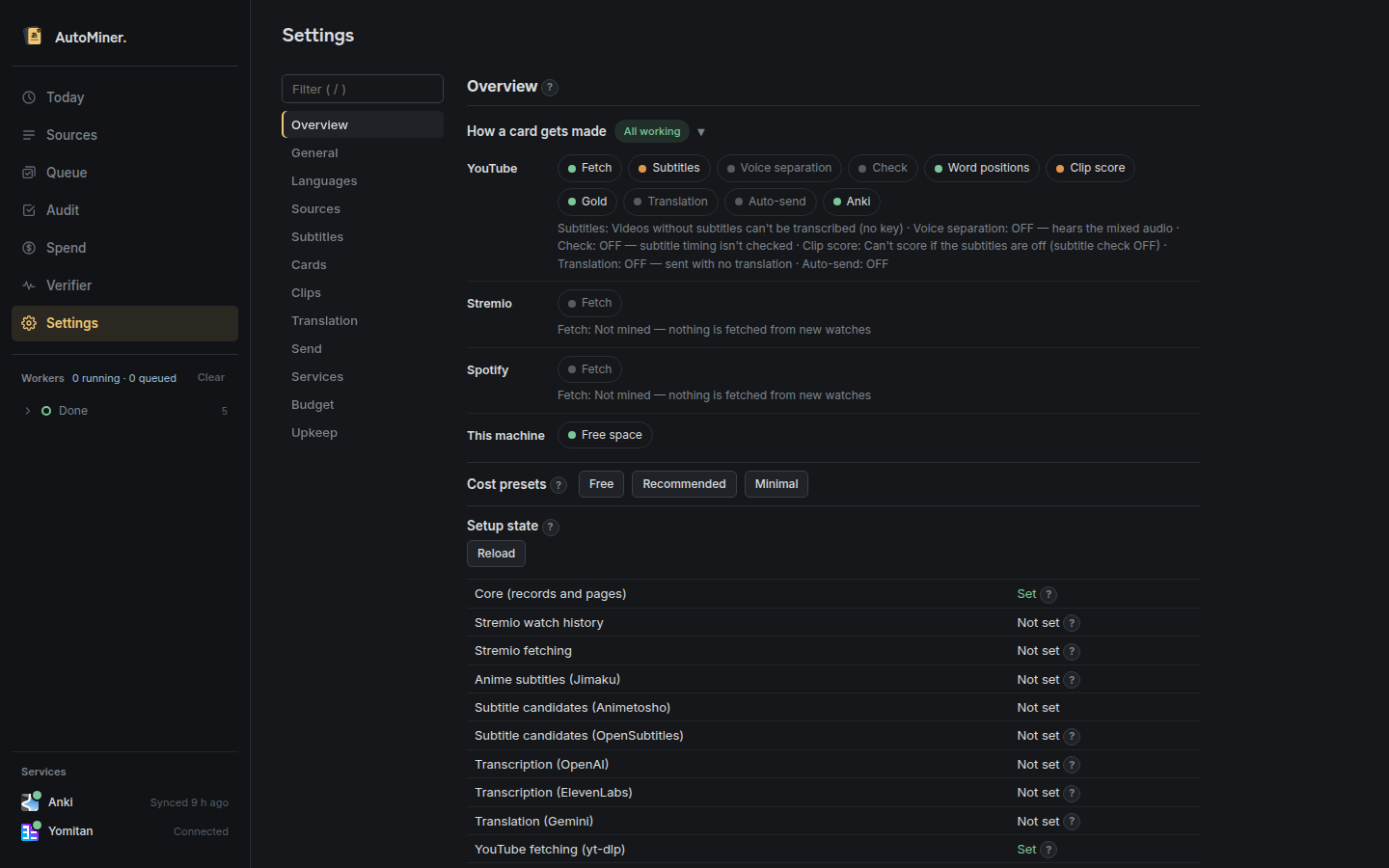
Settings › Overview shows whether YouTube can fetch. Under How a card gets made, the
YouTube row’s first step, Fetch, says yt-dlp when a yt-dlp is found, or names what is
missing (yt-dlp not on this machine). Under Setup state, the row
YouTube fetching (yt-dlp) says Set, Not set or Setup error; its ? says
where yt-dlp was found. autominer doctor prints the same check on the server.
Which yt-dlp is used
Section titled “Which yt-dlp is used”AutoMiner uses the first one it finds:
- the path in
AUTOMINER_YTDLP, if you set one; - the yt-dlp it downloaded when you installed YouTube;
- a yt-dlp installed beside AutoMiner (in its virtualenv);
yt-dlpon the server’sPATH;/usr/local/bin/yt-dlp.
The PO-token provider is used only with AutoMiner’s own yt-dlp (step 2). If you point
AUTOMINER_YTDLP at another yt-dlp, it runs without PO tokens. autominer help AUTOMINER_YTDLP
shows how to set or clear it.
What gets mined
Section titled “What gets mined”Settings › Sources › YouTube holds the YouTube settings. Changes are saved with Save changes at the bottom of the page.
All of it, Only what I watched, Don’t mine
Section titled “All of it, Only what I watched, Don’t mine”The select in the YouTube section’s heading decides what a watch mines.
| Choice | What happens |
|---|---|
| All of it (default) | The whole video’s subtitles become candidates, wherever you watched. |
| Only what I watched | Only the lines of the parts you watched become candidates. The extension and the Android patch both report positions, so this works for both. A span of a few seconds (where a seek landed) does not count as watched. Watching more of the video later mines that part too. On Sources, a band under the source shows the watched parts in blue and the sent cards in gold. |
| Don’t mine | Watches are still recorded on Today, but no new watch is fetched or mined. Mining you start yourself still runs. |
Changing the choice never changes existing sources by itself:
- After switching to Only what I watched, cards from unwatched parts of older sources stay. Rebuild a source with Recalculate to drop them.
- After switching back to All of it, sources mined only where you watched turn Stale on Sources. ↻ (Fix dependencies or Fix all) mines the rest.
Mining filters
Section titled “Mining filters”The Mining card in the YouTube section has two switches. Both are off by default.
| Setting | When on |
|---|---|
| Mine only videos in a studied language | AutoMiner asks YouTube for the video’s language. A video YouTube lists in a language you don’t study is not mined, even if it has subtitles in a language you study. A video whose language YouTube doesn’t list is mined. |
| Mine only videos with manual subtitles | Only videos with subtitles the uploader added, in the video’s language, are mined. Videos with only YouTube’s automatic captions, or no subtitles at all, stop with the reason. They are not transcribed, so they cost nothing. |
A video a filter stops is marked on its Today row with the reason, for example
Not in a language you study (English) or
No manual Japanese subtitles (auto captions only). The filters apply only to mining that
starts from a watch. To mine such a video anyway, click its row on Today
(Fetch from YouTube and mine).
The Phone card in the same section sets up watch reporting from the YouTube app on Android. The whole setup is in YouTube on an Android phone.
Media retention
Section titled “Media retention”The Media retention card under the platform sections applies to YouTube too. The
retention sweep deletes a downloaded video once it is mined and older than Days kept
(default 10), or, with Delete once assets are done on (the default), once every candidate
of the source has its clip and picture. Audio, frames and clips stay. The card describes a
nightly run at 04:50, but install.sh does not schedule the sweep; see
The retention sweep.
Subtitles
Section titled “Subtitles”For each video, AutoMiner looks for subtitles in the source’s language, in this order:
- Manual subtitles: subtitles the uploader added.
- YouTube’s automatic captions, from the video’s original-language track. YouTube’s machine translations of captions into other languages are never used.
- Transcription: when the video has neither, AutoMiner transcribes the audio with your transcription provider.
Every track’s text is checked to really be in the source’s language. A track labelled Japanese that is in fact English is ignored.
Other subtitle sites (Jimaku, Animetosho, OpenSubtitles) are not searched for YouTube videos.
Videos with only automatic captions
Section titled “Videos with only automatic captions”YouTube’s automatic captions are machine-made. When a video has nothing better, AutoMiner keeps the automatic captions and then transcribes the audio with your transcription provider instead, if:
- the language is one AutoMiner mines;
- the provider chosen in Settings › Subtitles › Subtitle transcription › Provider has its API key;
- the budget allows the cost (see Costs).
If one of these is missing, or the transcription fails or is cancelled, the automatic captions are mined as they are. With ElevenLabs (Scribe) as the provider (the Recommended cost preset), this means auto-caption videos are transcribed by Scribe.
Videos without subtitles
Section titled “Videos without subtitles”| Provider | What happens |
|---|---|
| OpenAI (Whisper) (default) or ElevenLabs (Scribe), with its key | The audio is downloaded and transcribed, then mined. |
| Same, without its key | The transcription fails with an API-key message such as … API key not set (no_api_key). |
| No transcription | The video is skipped: Transcription OFF. |
After the fetch
Section titled “After the fetch”Like other sources, YouTube subtitles go through the timing check (判定, the verdict on whether the subtitles are timed to the audio); see Subtitle sync. To fetch a source’s subtitles from YouTube again, use Update subtitles on the source’s subtitle screen in Sources. The subtitle candidates are named YouTube subtitles and YouTube auto subtitles.
Languages
Section titled “Languages”You choose the languages you study in Settings › Languages. AutoMiner can mine Japanese,
Chinese and Korean. A language you tick that AutoMiner cannot mine is fetch only: its
videos are fetched and recorded, but no cards are made. Today marks them
<language> is not mined (fetch only).
Which language a YouTube video is in:
- With one studied language, every YouTube video is treated as being in that language, unless Mine only videos in a studied language is on (then AutoMiner asks YouTube, as above). Turn it on if you also watch videos in languages you don’t study; otherwise AutoMiner looks for subtitles in your language for them and, finding none, transcribes them when a transcription provider is set.
- With several studied languages, AutoMiner uses the language YouTube lists for the video. When YouTube lists none, it guesses from the title and may listen to a short part of the audio. When you mine a video by hand from Today, Today asks “Which language should it be mined in?”.
To correct a source’s language afterwards, use the language select in the source’s header on Sources. AutoMiner fetches its subtitles again in that language and mines it again; see Pages.
| Step | Cost |
|---|---|
| Fetching with yt-dlp | Free. |
| Transcribing a video without subtitles, or with only automatic captions | Paid, per minute of audio, when a provider is set: OpenAI about $0.36 an hour (the default), ElevenLabs about $0.40 an hour, as the transcription card says. |
| Timing check, translation | Apply to every platform, and cost money depending on the services you choose; see Subtitle sync and the Translation settings. |
Settings › Overview › Cost presets sets these together: Free turns transcription off, Recommended uses ElevenLabs, Minimal uses OpenAI. Settings › Budget sets daily, monthly and per-source limits, and the Spend page shows what was spent. An auto-caption transcription the budget would refuse is not started; the automatic captions are mined instead. To avoid paying for videos you don’t study, turn on Mine only videos in a studied language or Mine only videos with manual subtitles.
YouTube refusing the server
Section titled “YouTube refusing the server”YouTube is much stricter with servers than with browsers. It may answer yt-dlp with “Sign in to confirm you’re not a bot”, “too many requests”, or HTTP 403 for the video itself. What AutoMiner does:
- Pauses all YouTube fetches after a bot check or too-many-requests answer: 15 minutes, doubling up to 6 hours, instead of every source asking again. A successful answer from YouTube ends the pause early.
- Tries the fetch again by itself, first after 30 minutes, doubling up to 6 hours, for up to 3 days.
- Uses the VPN proxy, if you set one. A call YouTube refuses with a bot check, too many requests or HTTP 403 is made again through the proxy at once. If that works, later calls go through the proxy for 6 hours. While calls go through the proxy, a refused call is tried again from the server’s own address, and if that works AutoMiner stops using the proxy.
- Comes back for missing videos. A source mined without its video (for example because YouTube refused the download) gets its video asked for again later, one source at a time, and its clips are cut when it arrives.
To make it less likely:
-
Make sure Node.js is on the server’s
PATH, and that AutoMiner uses its own yt-dlp (see Which yt-dlp is used). -
Set up a VPN proxy: an HTTP proxy whose exit is a VPN, such as Gluetun’s (see Self-hosting). Enter it in Settings › Services › VPN proxy URL and click Test. The same proxy also guards Stremio’s torrent downloads.
AUTOMINER_VPN_PROXY, if set on the server, wins over this field. -
Choose how YouTube uses the proxy with
AUTOMINER_YOUTUBE_VPNon the server (autominer help AUTOMINER_YOUTUBE_VPNshows how to set it):Value Behaviour fallback(default)Use the proxy after a refusal, then for 6 hours. alwaysSend every YouTube call through the proxy. offNever use the proxy for YouTube.
More detail: Installing › YouTube refusing the server.
Check that it works
Section titled “Check that it works”- In Settings › Overview, the YouTube fetching (yt-dlp) row says Set.
- Watch a YouTube video with subtitles in your language, in Chrome with the extension set up, then close its tab.
- On Today, the video appears, with your device name.
- The fetch starts. On Sources, the video appears under its channel, shown as updating while it is fetched and mined, then Up to date.
- Open it to see its words and candidates.
Troubleshooting
Section titled “Troubleshooting”When a fetch stops, its reason shows in two places: a mark on the video’s row on Today (click it to read the reason), and on Sources, where a failed source shows Failed (hover it for the reason). The messages below are the English ones.
| Message | Meaning | What to do |
|---|---|---|
| Nothing on Today at all | The watch never reached the server, or YouTube is not installed. | Check the extension: The Chrome extension. Install YouTube (above). |
| On Today, but never fetched | The video was already mined, another source has the very same title, or YouTube is set to Don’t mine. | If it is already mined, its row on Today opens its candidates. Otherwise click the row to mine it anyway. |
YouTube refused (bot check) — fetch again later, or (too many requests) |
YouTube refused the server. | Nothing: it is retried by itself. To make it rarer, see YouTube refusing the server. |
YouTube refused (age check) — fetch again later |
The video is age-restricted. | AutoMiner fetches without a YouTube account or cookies, so it can’t fetch this video. |
YouTube refused (members only) — fetch again later |
The video is for channel members. | As above: it can’t be fetched. |
YouTube refused (private video) — fetch again later |
The video is private. | It can’t be fetched. |
YouTube refused (region blocked) — fetch again later |
The video is not available where the server is. | Setting AUTOMINER_YOUTUBE_VPN=always sends calls through the VPN proxy, which helps if its exit is in a country where the video is available. |
YouTube refused (video unavailable) — fetch again later |
The video was removed or can’t be played. | Nothing to do. |
Live stream (is_live): subtitles come only with the VOD — fetched again then (also is_upcoming, post_live) |
A live stream has no subtitles until YouTube makes it a normal video. | Nothing: AutoMiner tries again after 2 hours, doubling up to a day, while YouTube mining is on. |
Live stream: no VOD after a week |
The stream never became a normal video within 7 days. | Nothing to do. |
Not in a language you study (<language>) |
Mine only videos in a studied language stopped it. | Click the row on Today to mine it anyway, or correct its language. |
No manual <language> subtitles (auto captions only) or (no subtitles) |
Mine only videos with manual subtitles stopped it. | Click the row on Today to mine it anyway. |
<language> is not mined (fetch only) |
The video is in a language AutoMiner fetches but can’t mine. | Nothing, or correct the language if it is wrong. |
Couldn't tell its language (pick one you study) |
With several studied languages, the language could not be found. | Pick the language when Today asks. |
Transcription OFF |
The video has no subtitles and transcription is off. | Choose a provider in Settings › Subtitles, or leave it. |
… API key not set (no_api_key) |
The video needs transcription and the provider has no key. | Enter the key in Settings › Services. |
YouTube is not installed |
A fetch ran while YouTube was not installed. | Install YouTube. |
yt-dlp not on this machine on Settings › Overview |
No yt-dlp was found. | AutoMiner downloads a missing yt-dlp again by itself, soon after it starts and then about once a day; restart AutoMiner to do it now. Or check AUTOMINER_YTDLP. |
A failed fetch is tried again whenever you watch the same video again.